How to Clean Recurring CSV Exports Without Redoing the Work Every Month
When the same export arrives every month, the cleaning work repeats with it. Recording the steps once as a recipe and replaying it on the next file removes that work. BigXL saves a sequence of cleaning steps and applies it to a new file in one go, which is a Pro feature.
Ask anyone who works with exported data what actually costs them time, and almost nobody says “the analysis”. They say the part before it.
The same four complaints come up over and over in r/digitalforensics, r/ediscovery and r/excel:
- The columns are never the same twice. An investigator pulls timeline exports from several devices and carriers, and every source names its fields differently. A finance team’s bank export says
Full Namein January andnamein February. The cleanup you saved last month no longer fits this month’s file. - Everything has to become one table first. Thirty branch files, or a dozen carrier exports, have to be merged before anyone can ask a single question. Then Excel gives up somewhere past a million rows.
- The numbers are text. Amounts arrive as
$1,234.56, and the negatives are in brackets like(200), because that is how accountants write them. The column will not sum, sort or chart. - Nobody can tell what changed. Last month’s export and this month’s sit side by side, and somebody works through them row by row.
None of this is analysis. It is the tax you pay before analysis, every month, forever.
This is a walkthrough of nine of those jobs: what goes wrong, what people usually do about it, and how to do each one so it still works next month when the file changes again. If your version of this is a DFIR timeline or a call detail record export, the same nine jobs apply, and those posts go deeper on the investigation side.
You can follow along with your own files, or build the sample folder at the end in about a minute.
| The job | What breaks | Where it is |
|---|---|---|
| Reuse a cleanup when headers change | The recipe silently skips steps | Run this cleanup on a folder |
| Combine a folder into one file | Column order differs per file | Same place, combined file |
| Split one file per region or client | 600 files by accident | Split into one file per column |
| Make money add up | $, commas, (200) |
Force column to numbers |
| Debit and credit into one amount | Two columns, neither totals | Combine debit and credit |
| Know what personal data is in a file | You find out after sending it | Save privacy scan |
| Hand someone a representative sample | You send the whole file | Save a sample of the rows |
| See what changed since last month | Manual row by row | Compare the two files |
| Export something Excel can open | The 1,048,576 row wall | Export in chunks |
1. The cleanup that stops working when the header changes
You spend twenty minutes trimming, renaming and fixing a monthly export. You save it as a recipe so next month takes twenty seconds.
Next month the file arrives with Full Name where it used to say name. Every tool in this space does one of two things at that point, and both are bad. It either fails the whole run, or worse, it applies the steps it can and quietly skips the ones it cannot.
The second one is the dangerous one, and it is worth being precise about why.
Say your recipe masks an email column before the file leaves your machine. The new file calls it e_mail. A tool that skips steps it cannot apply will skip the mask, then export the file anyway, and the output looks completely normal. The addresses are sitting there in plain text and nothing told you.
What to do instead: map the header once, and have the tool refuse when it cannot.
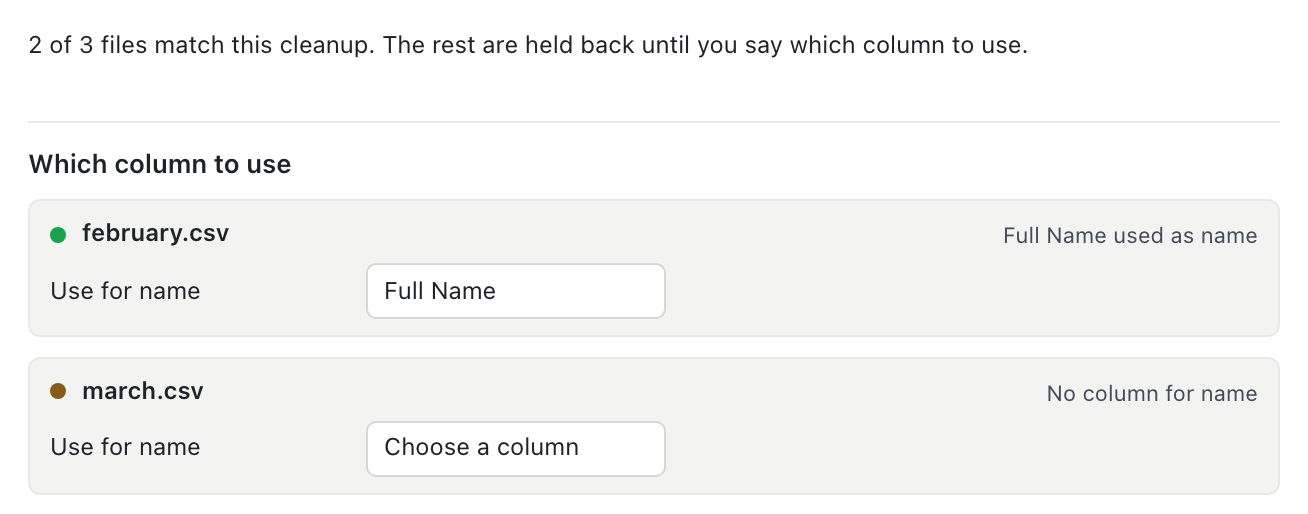
In BigXL, File, Run this cleanup on a folder reads every file in the folder before it runs anything, and tells you how many match. Files that do not match are listed with what is missing, and you pick the column to use. Full Name is suggested for name because it normalises to the same letters, but you confirm it. Nothing is guessed on your behalf, and the mapping is saved with the recipe, so next month the answer is already there.
Two rules that matter more than the feature:
- A file that cannot be mapped is held back, not half processed. It appears in the results with the reason, and no output file is written for it.
- A recipe step that hides personal data is never skipped. If the column it needs is missing, that file fails. Redaction you asked for is not optional.
There is more to this one than fits here, including why cat corrupts a merge silently: merging CSV files with different columns.
2. Thirty files that need to be one file
Thirty branch exports, one per folder. Same shape, different order. Somebody opens all thirty and copies rows into a master sheet.
The usual advice is a cat command, which works right up until the column order differs between files, at which point it silently interleaves the wrong values into the wrong columns. That is the failure everyone remembers, because it produces a file that looks fine.
What to do instead: combine by column name, not by position.
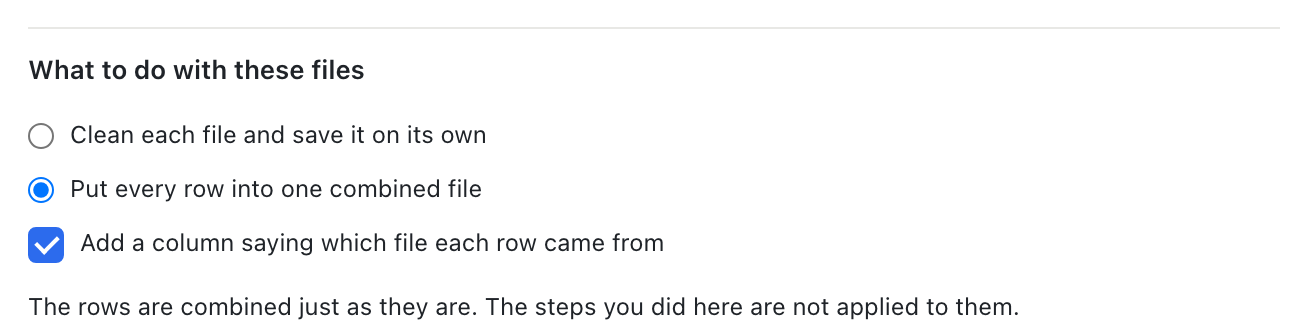
Same dialog, choose Put every row into one combined file. Files whose columns are in a different order line up correctly because the match is on the name. A file with an extra column does not fail the run; the other rows simply have that cell blank.
Tick Add a column saying which file each row came from and every row carries its source filename, which is the thing you always want twenty minutes later when one branch’s numbers look wrong. This is what you are left holding:
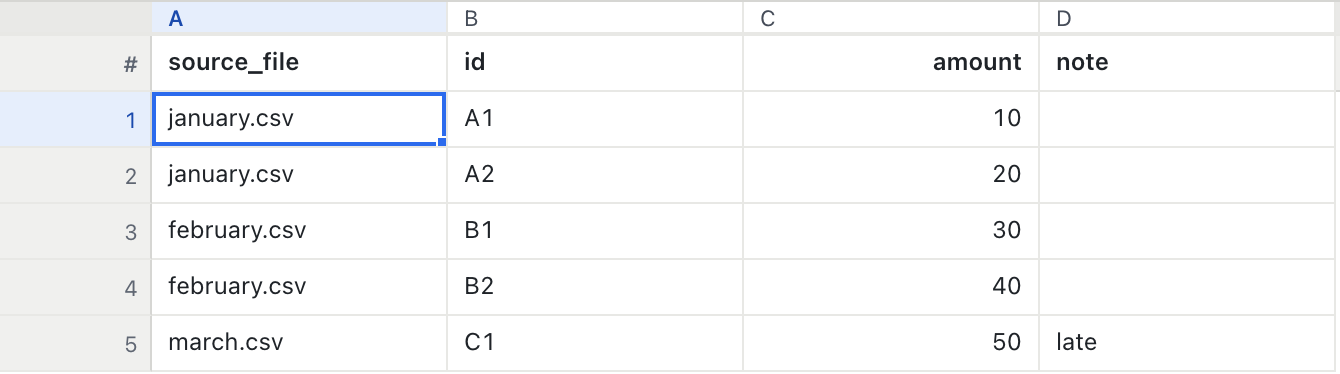
Note the note column. Only march.csv had it, and the other four rows are blank rather than shifted.
One deliberate choice: combining does not apply your cleanup steps. Combine first, clean the combined file once. Cleaning thirty files identically and then stacking them is the same work done thirty times.
Why position-based merging corrupts a file without telling you is covered in merging CSV files with different columns.
3. One file that needs to be many
The inverse, and just as common: a 5 million row file that has to become one file per region, per client, or per cost centre, because that is what each team is allowed to see.
This is usually a Python script, which means it is usually a Python script that somebody else wrote and nobody currently understands.
Click the column, then File, Split into one file per region. You get North.csv, South.csv, East.csv, one per value, each with its own header.
$ ls regions/
East.csv    North.csv   South.csv   blank.csv
$ head -3 regions/North.csv
id,region,amount
1,North,10
5,North,50
Three details that come from real use rather than design:
- Blank values get their own file, called
blank.csv. They are not dropped. Rows quietly disappearing is the worst possible outcome here. - Filters are respected. Filter to this quarter first and you split only this quarter.
- There is a limit of 500 files. Splitting by an ID column is almost always a misclick, and 600 files appearing in a folder is miserable to undo. It refuses, tells you the count, and writes nothing.
4. Money that will not add up
A column that reads $1,234.56, £90, 1,000 and (200) is text. It will not sum, sort or chart. Sorting it puts $90 above $1,000 because that is alphabetical order.
Most tools offer “convert to number” and strip every symbol and comma. That works for the easy cases and quietly destroys two:
(200) is accounting notation for negative two hundred. Strip the brackets and you have positive 200, and your total is out by 400 with nothing to show for it.
1.234,56 is one thousand two hundred thirty four in most of Europe, and one point two three in the US and UK. There is no way to know which from the value alone.
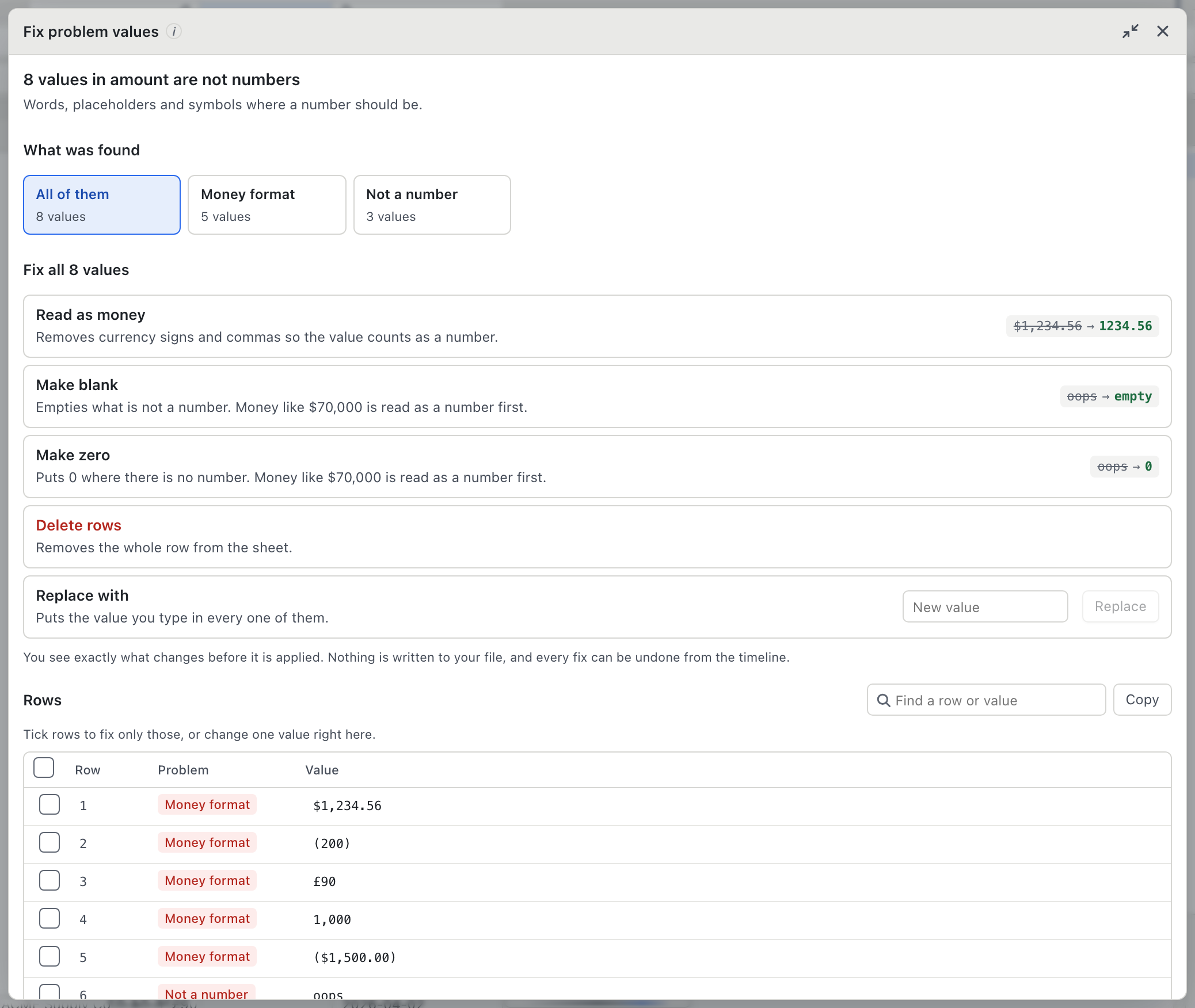
Clean, Force amount to numbers reads currency symbols, thousands separators and accounting brackets, so (200) becomes -200.
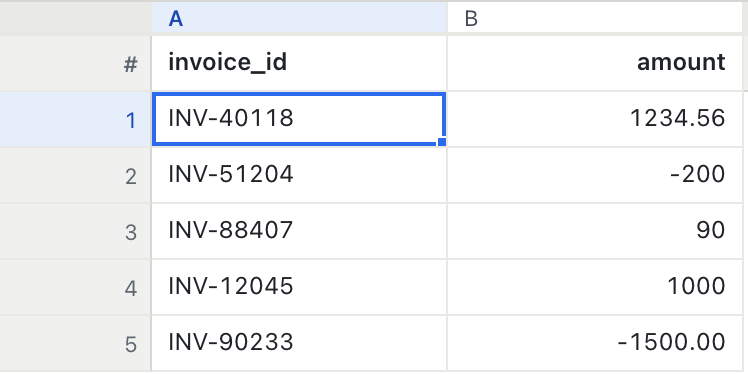
The column is right aligned because it is now numeric, which means it will sum, sort and chart. And it flatly refuses 1.234,56. That value is handed to you, listed with the other rogues, and you decide: make it blank, make it zero, type a replacement, delete those rows, or fix each one by hand. A tool guessing at money is a tool inventing your numbers. The same rule already applies to ambiguous dates, where 03/04/2026 is two different days depending on where the file came from.
5. Debit and credit, which is one number in two columns
Every bank export does this. Debit holds money out, Credit holds money in, each row fills one and leaves the other empty. In that shape the amount cannot be totalled, charted, or sorted, because it is not a number in a column, it is a number in two columns.
The spreadsheet answer is a formula column, then hiding the originals, then remembering to redo it next month.
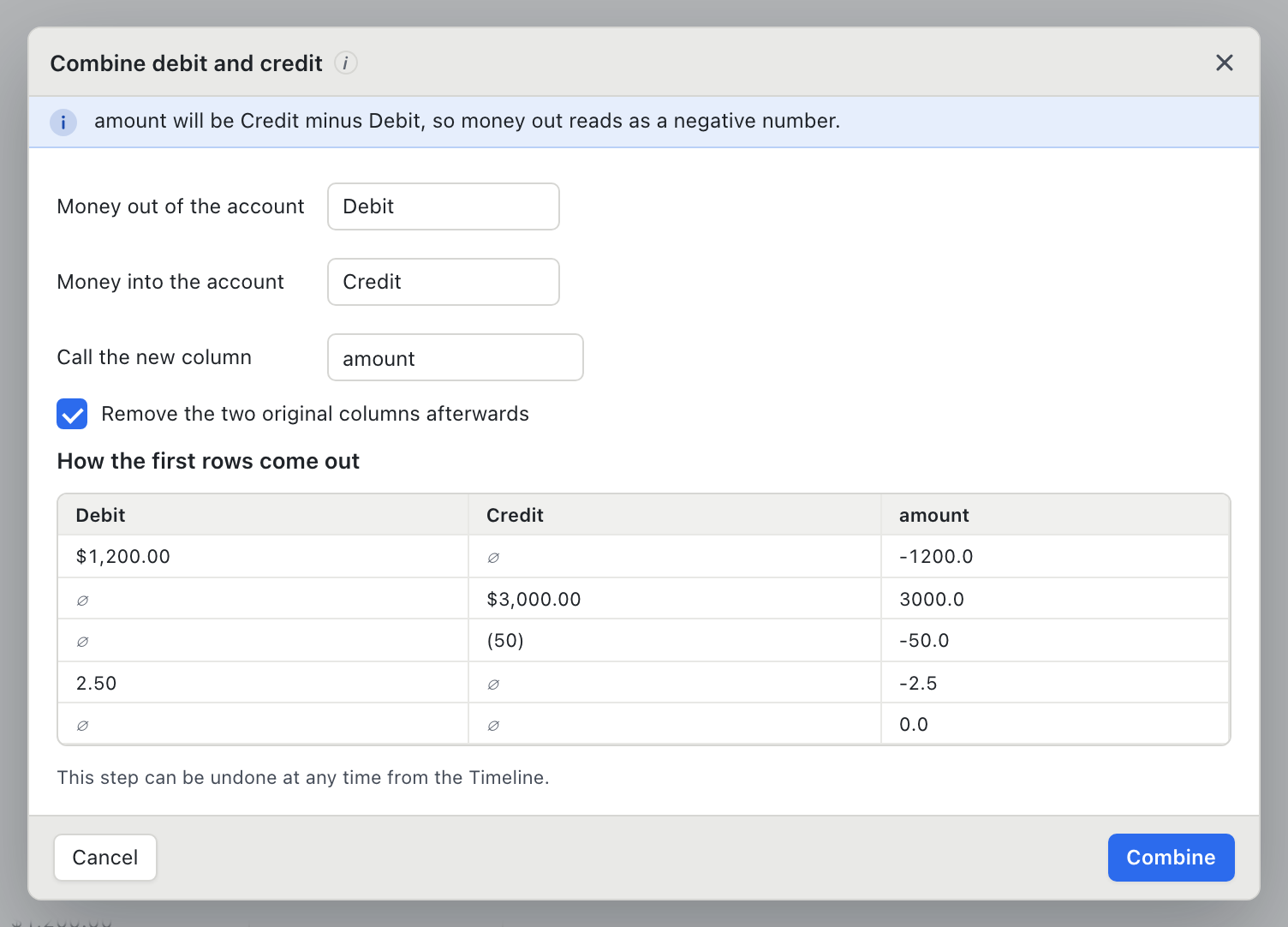
Data, Combine debit and credit into one amount asks which column is money out and which is money in, shows you the first rows before you commit, and writes one signed amount: money out negative, money in positive, an empty row as zero.
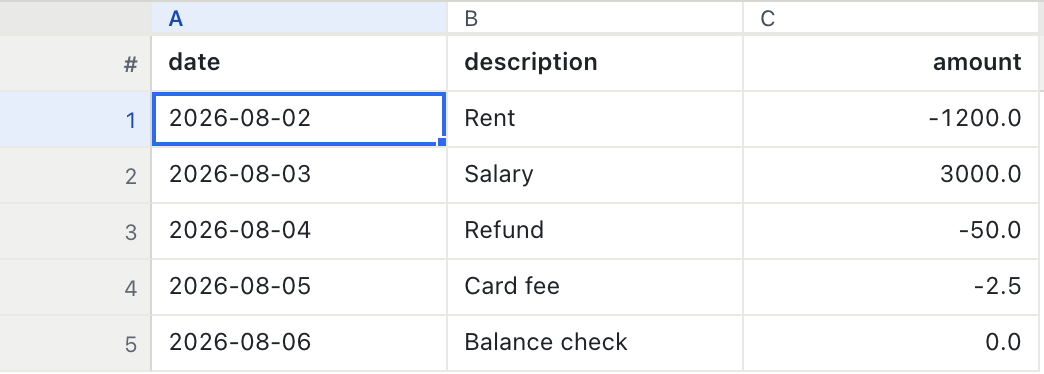
It reads the money formats from the section above on the way through, so $1,200.00 and (50) both work without a cleanup step first. Tick the box and the two original columns are removed. It is three steps in the timeline, so undo walks back through it cleanly.
6. Knowing what is in a file before you send it
The most expensive data mistake is not a wrong number. It is sending a file to someone who was not supposed to see column K.
People check by eye, which works until the file has 200 columns, and then it does not work at all.
File, Save privacy scan writes a short text file listing which columns look like personal data, what kind, and whether each is currently hidden. Emails, phone numbers, national IDs, card numbers, names, addresses, IP and MAC addresses. This is the whole of it for a seven column invoice file:
Privacy scan

File: invoices-august.csv
Rows: 1204877
Scanned: 2026-09-25 09:14
BigXL version: 1.0.0
Columns: 7

4 of 7 columns look like personal data:

  contact_name is a person's name and is not hidden
  contact_email is an email address and is not hidden
  phone is a phone number and is not hidden
  card_number is a card number and is hidden using last4

This report lists column names only. No values from the file are in it.
It says what BigXL recognised, which is not a guarantee that nothing else is personal.
The part that makes it useful: it contains no values from your file. Column names and counts only. You can send the scan to a compliance reviewer, a client or a manager who is not cleared to see the data itself, which is the entire point of a review step.
It also does not claim more than it knows. It says plainly that what it recognised is not a guarantee that nothing else is personal. Any tool that gives you a green tick on that question is selling you something. If you then want to hide what it found, that is masking, which runs locally.
7. Handing someone a sample instead of the file
“Can you send me a bit of it so I can test my import?”
The instinct is head -1000, which gives you the first thousand rows. If the file is sorted by date, region or customer, the first thousand rows are all January, or all one region, and whatever they build against it breaks on the real file.
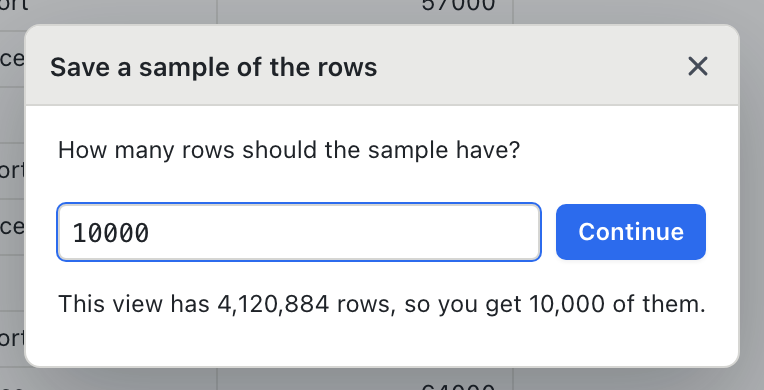
File, Save a sample of the rows takes a spread across the whole file. Two useful properties: it is repeatable, so “the sample” means the same rows every time you generate it, and it respects your filters and masking, so you can mask the personal columns first and sample from the masked view.
8. What actually changed since last month
Two exports of the same report, a month apart. Which rows are new, which disappeared, and which have different numbers?
The spreadsheet answer is VLOOKUP in both directions, then a third formula to compare the values, then manual scanning. It is slow and it is where errors get introduced, which is why VLOOKUP on a large file comes up so often.
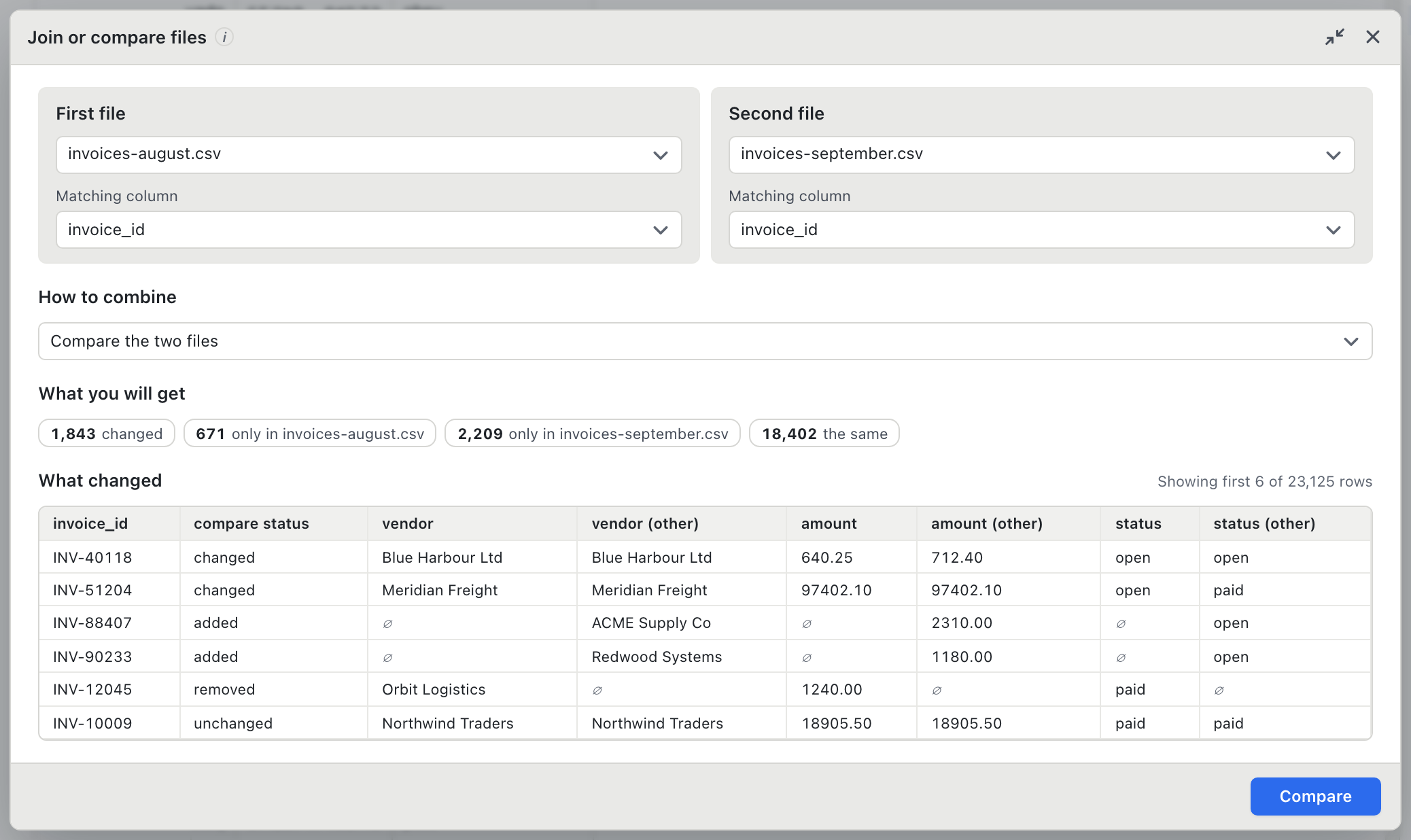
Open both files, open the Join panel, and choose Compare the two files with the key column on each side. You get four counts before anything is applied: changed, only in this file, only in the other, and the same. Apply it and you get a normal result tab you can filter, sort and export, with both values side by side for every shared column.
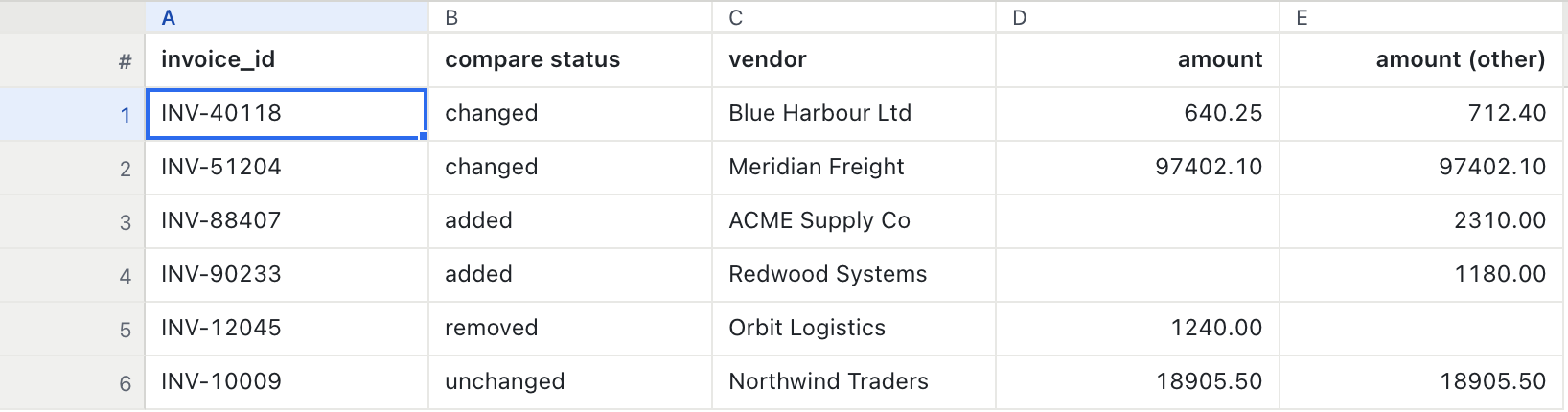
The two traps are a key that repeats and rows with no key at all, and both are reported rather than guessed at. That is the whole argument, and it has its own post: comparing two CSV files.
9. Exporting something Excel will actually open
The result is 4 million rows. Excel stops at 1,048,576.
File, Export in chunks asks how many rows per file and tells you what you will get before it runs: “This view has 4,000,000 rows, so you get 4 files.” Each file takes the name you choose with _part1, _part2 on the end, and every part gets the header row, which is the step the usual split command leaves out.
The rule underneath all nine
Every one of these has a version that looks smarter and is worse.
A tool that guesses which column is which. A tool that strips every comma from a money column. A tool that picks one row when a key matches twice. A tool that skips a redaction step because the column moved. Each of those makes the demo smoother, and each of them produces a file that is confidently wrong, which nobody catches, because there is nothing to catch.
The rule we kept: when the data is ambiguous, refuse and say so. Show the values, show the counts, and let the person who understands the data make the call. It costs a click. It saves the case where your quarterly numbers were wrong for four months and nobody noticed.
Build the test folder yourself
A minute of setup, then you can try all nine on data where you know the right answer.
mkdir -p bigxl-test/monthly && cd bigxl-test

# Headers that drift between months
printf 'name,team\n  ann carter  ,red\n' > monthly/jan.csv
printf 'team,Full Name\nblue,  cal evans  \n' > monthly/feb.csv
printf 'team,who\ngreen,  eve gray  \n'      > monthly/mar.csv

# Money that breaks a naive conversion
printf 'id,amount\n1,"$1,234.56"\n2,(200)\n3,£90\n4,"1,000"\n5,oops\n6,"1.234,56"\n' > money.csv

# A bank export split over two columns
printf 'date,description,Debit,Credit\n2026-01-02,Rent,"$1,200.00",\n2026-01-03,Salary,,"$3,000.00"\n' > bank.csv

# Two months to compare
printf 'id,name,amount\n1,Ann,100\n2,Bob,200\n3,Cal,300\n' > before.csv
printf 'id,name,amount\n1,Ann,100\n2,Bob,250\n4,Dee,400\n' > after.csv
Then work through them in order. The interesting results are the refusals: mar.csv held back because nothing maps to name, and 1.234,56 handed back to you instead of silently becoming 1.23456.
BigXL cleans files on your machine without uploads or an account, which makes it usable on data you are not allowed to send anywhere. If you want to ask questions of the file in plain English as well, that also runs locally.
Common questions
How do I avoid redoing the same CSV cleanup every month?
Record the steps once and replay them. BigXL recipes capture the transforms you applied and run the same sequence against next month's file.
What if next month's file has renamed headers?
That is the common failure. A recipe that matches columns by name will flag a header that no longer exists rather than quietly applying the step to the wrong column.
Can I clean several files at once?
Bulk folder cleanup is included in the Enterprise tier, which applies the same treatment across a directory of files.