Handling Complex CSV Date Formats Without Corruption
Excel changes dates on import because it guesses the format from your computer's regional settings. A date written 03/04/2026 becomes 3 April or 4 March depending on that guess, and dates it does not recognise become five digit numbers like 45182. The fix is to control the format on import rather than let Excel infer it.
You export a clean CSV from your database or billing system. You open it in Excel to review the numbers.
Half your dates now look like 45582. Another quarter look like 05/06/2024 because Excel swapped 6 May into 5 June. The remaining rows stayed as raw text like 2024-03-27 because 27 cannot be a month.
When you try to sort by date, the column falls apart. The serial numbers cluster at the top, the text strings sort alphabetically at the bottom, and the flipped dates sort into the wrong quarter.
Here is why Excel mangles date columns when converting CSV to Excel, and five ways to clean up the mess.
Why dates become five-digit numbers
Under the hood, Excel does not have a native date data type. It stores every date as a floating-point number representing the number of days elapsed since 1 January 1900.
| What you expect | The raw integer Excel stores |
|---|---|
| 1 January 1900 | 1 |
| 1 January 2000 | 36526 |
| 1 January 2024 | 45292 |
| 18 October 2024 | 45583 |
When you type a date into a cell manually, Excel records the integer and applies a visual date format over it. But when you open a raw CSV file, there is no formatting metadata attached to the text.
If Excel’s import parser decides a column is numeric rather than a date, it strips the text and leaves you with the raw days integer. That is where 45582 comes from.
The Lotus 1-2-3 leap year bug
Excel contains an intentional historical bug in its date engine.
When Lotus 1-2-3 was released in 1983, its developers mistakenly treated the year 1900 as a leap year. Years divisible by 100 are not leap years unless they are also divisible by 400, so 1900 had no 29 February.
When Microsoft built Excel to compete with Lotus 1-2-3, they copied the bug intentionally so workbooks would match. Excel still pretends 29 February 1900 exists. Every day number from 1 March 1900 forward is offset by one day compared to astronomical reality.
Why Excel swaps day and month
The most dangerous failure is when Excel swaps day and month without warning.
Unlike ISO databases that require YYYY-MM-DD, CSV files frequently contain regional date formats such as DD/MM/YYYY (common in Europe, India, and Australia) or MM/DD/YYYY (standard in the United States).
When you double-click a CSV, Excel uses the regional settings of your operating system to guess what each column means:
- If your computer is set to US English (
MM/DD/YYYY) and the file has04/05/2024representing 4 May, Excel silently converts it to 5 April. - Excel continues reading down the column.
- When it reaches
22/05/2024, it encounters day 22 in the first position. Since there is no month 22, it cannot parse the value as a US date. - Rather than alerting you, Excel gives up on that row and stores it as plain text.
The result is a corrupted hybrid column: dates with days from 1 to 12 become flipped serial dates, while dates with days from 13 to 31 stay as unparsed text strings. A quarterly revenue report built on that column will report transactions in the wrong fiscal quarter.
Five ways to fix broken dates
1. The Text to Columns wizard (in Excel)
If your dates are still raw text and have not been converted to numbers, Excel’s Text to Columns tool allows you to declare the source format explicitly:
- Select your date column.
- Go to Data, then Text to Columns.
- Choose Delimited and click Next twice until you reach Step 3.
- Under Column data format, select Date.
- In the dropdown next to Date, choose the format that matches your source file, such as
DMYfor day-first orYMDfor year-first. - Click Finish.
Excel will parse every cell according to your chosen pattern rather than guessing based on system settings.
2. Formulas for five-digit integers
If your dates already turned into five-digit numbers, you can format the cells by pressing Ctrl+1 on Windows or Cmd+1 on Mac, picking Date, and choosing a standard pattern.
If you need to produce a clean ISO date text string for export, use the TEXT formula:
=TEXT(A2, "yyyy-mm-dd")If your column is a mix of integers and unparsed text strings, combine ISNUMBER with string slicing:
=IF(ISNUMBER(A2), TEXT(A2, "yyyy-mm-dd"), A2)3. Power Query with locale
To prevent Excel from guessing on future files, avoid double-clicking the CSV. Open a blank workbook and use Power Query:
- Data, then Get Data, then From Text/CSV.
- Select your file and click Transform Data.
- Right-click the date column header.
- Select Change Type, then Using Locale.
- Choose Date as the data type, and pick the locale that matches the author of the file, such as English (United Kingdom) for day-first dates.
- Click Close & Load.
Power Query locks the parser to the chosen locale, preventing system regional settings from flipping days and months.
4. Python and pandas
For large data exports with messy dates, Python handles mixed formats cleanly:
import pandas as pd

df = pd.read_csv("transactions.csv")
df["clean_date"] = pd.to_datetime(df["raw_date"], dayfirst=True, format="mixed")
df["clean_date"] = df["clean_date"].dt.strftime("%Y-%m-%d")
df.to_csv("transactions_clean.csv", index=False)
Setting format="mixed" tells pandas to evaluate each string flexibly, while dayfirst=True guarantees that ambiguous dates like 03/04/2024 resolve to 3 April rather than 4 March.
5. BigXL Date Standardizer
If you are dealing with a 500 MB or 10 GB CSV, opening it in Excel or Power Query will either trigger a freeze or hit the Excel row limit.
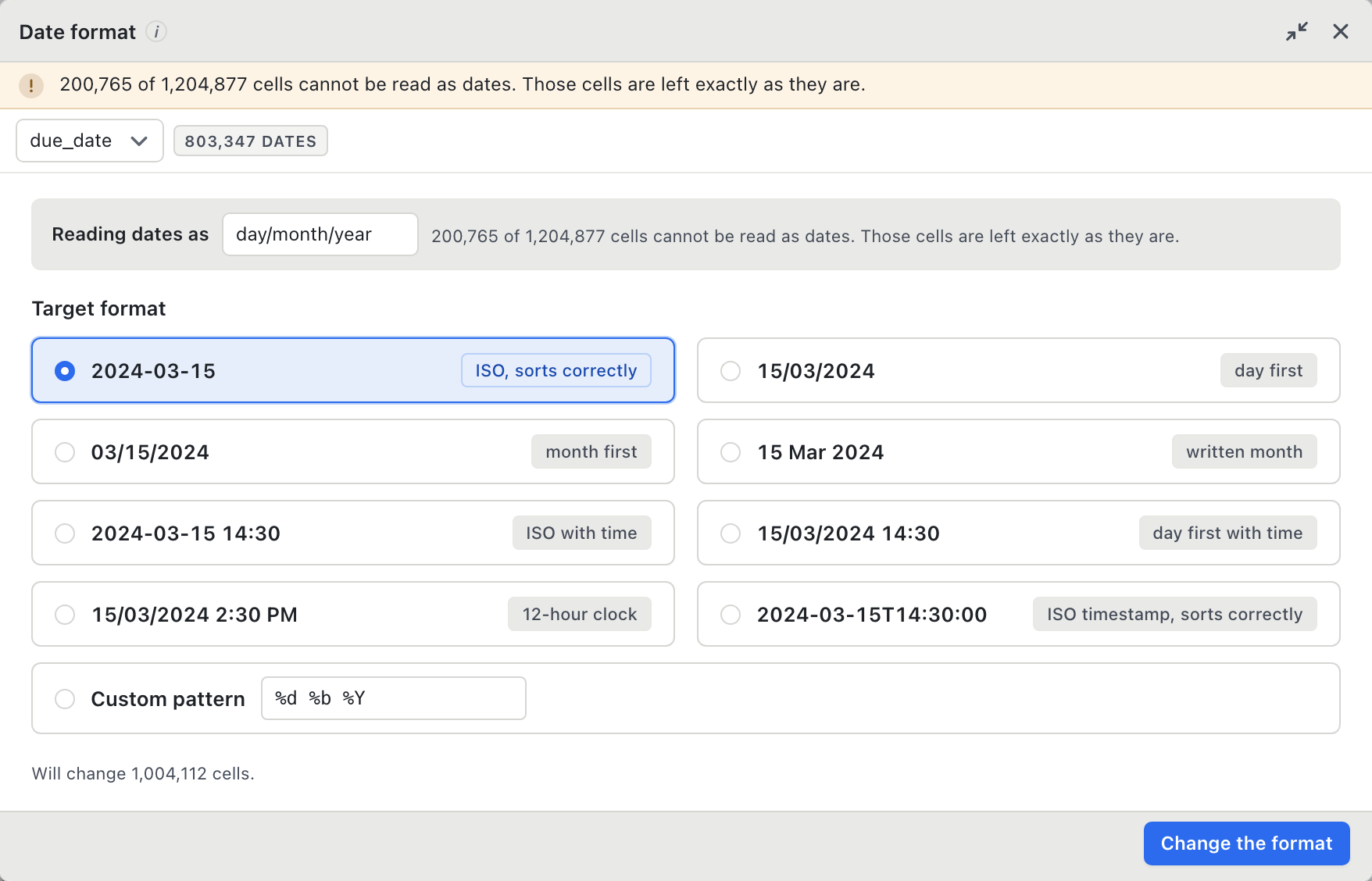
BigXL has a dedicated Date format tool designed specifically for dirty CSV files:
- Open your CSV in BigXL. Rows appear instantly with no wait.
- Select your date column and click Dates in the toolbar.
- BigXL inspects the full column across all rows in parallel.
- It lists all competing date patterns found in that single column and reports how many rows match each format.
- Select your target standard, such as
YYYY-MM-DD. BigXL shows a live before-and-after preview. - When you click Apply, BigXL rewrites the column into clean ISO 8601 dates in one pass.
Any rows containing descriptive text notes, blanks, or unparseable entries are left untouched rather than turned into #VALUE! errors. The change is saved as an undoable step in your history panel.
Everything runs on your local processor with complete privacy, so personal dates and patient records never touch an external server.
You can download BigXL for free on macOS, Windows, and Linux.
Common questions
Why does my CSV date show as 45182?
That is the underlying serial number, counting days since 1900. Excel stored the value as a date but the cell is formatted as a number. The data is fine, the display is not.
Why did Excel swap the day and the month?
Excel reads ambiguous dates using your regional settings. On a US machine 03/04/2026 is 4 March and on a UK machine it is 3 April. Nothing warns you, and the damage is permanent once saved.
How do I fix mixed date formats across millions of rows?
BigXL has a date standardiser that converts mixed formats to one pattern you choose, and refuses genuinely ambiguous dates instead of guessing. It is part of the Pro cleaning tools.