How to remove near-duplicate rows from a CSV, not just exact copies
Excel's Remove Duplicates only deletes rows that match character for character, so "Alice Smith" and "alice smith" both survive. To catch near-duplicates, compare the rows after tidying capitals, spacing and punctuation, review the groups it finds, and remove the extras from the groups you approve. BigXL does this on your own machine in about a second for a list of hundreds of thousands of rows, and the removal is one step you can undo.
You asked for a clean customer list and got one with 12,000 rows. Then you notice that “Alice Smith” is in there three times: once as Alice Smith, once as alice smith with two spaces, and once as Smith Alice. You run Remove Duplicates and nothing happens, because none of those rows match exactly.
This is the most common reason a “deduplicated” list is still full of repeats. Exact matching is a very strict test, and real data is not that tidy.
Why exact matching misses so much
Remove Duplicates, in Excel and in most tools, asks one question: is every character the same? A single difference makes two rows unique. These all count as different:
| What differs | Row A | Row B |
|---|---|---|
| Capitals | Alice Smith |
ALICE SMITH |
| Extra spaces | Alice Smith |
Alice Smith |
| Punctuation | Smith, Alice |
Smith Alice |
| Word order | Alice Smith |
Smith Alice |
| A typo | Alice Smith |
Alice Smyth |
A person would call every one of these the same record. A tool that only compares exact text keeps both.
The careful way to find them
Doing this well means three steps, in this order.
1. Tidy before comparing. Compare the rows after lowering the case, trimming and collapsing spaces, and ignoring punctuation and word order. That alone catches the first four rows in the table, and it creates no false matches, because nothing about the meaning changed.
2. Look at the groups. Do not delete anything yet. Show each set of rows that came out alike, side by side, and mark which one stays. This is the step that makes the result trustworthy. You see exactly what would go, and you can untick a group that is a coincidence.
3. Treat typos as a second, riskier pass. Close spelling finds Smyth against Smith, but it can also pair two different people. So those groups should start switched off until you have looked at them.
One more rule matters a lot for addresses and product names: numbers have to agree. Unit 4, 12 Crown Street and Unit 5, 12 Crown Street are two flats, not one. Any comparison that ignores digits will merge them.
Doing it in BigXL
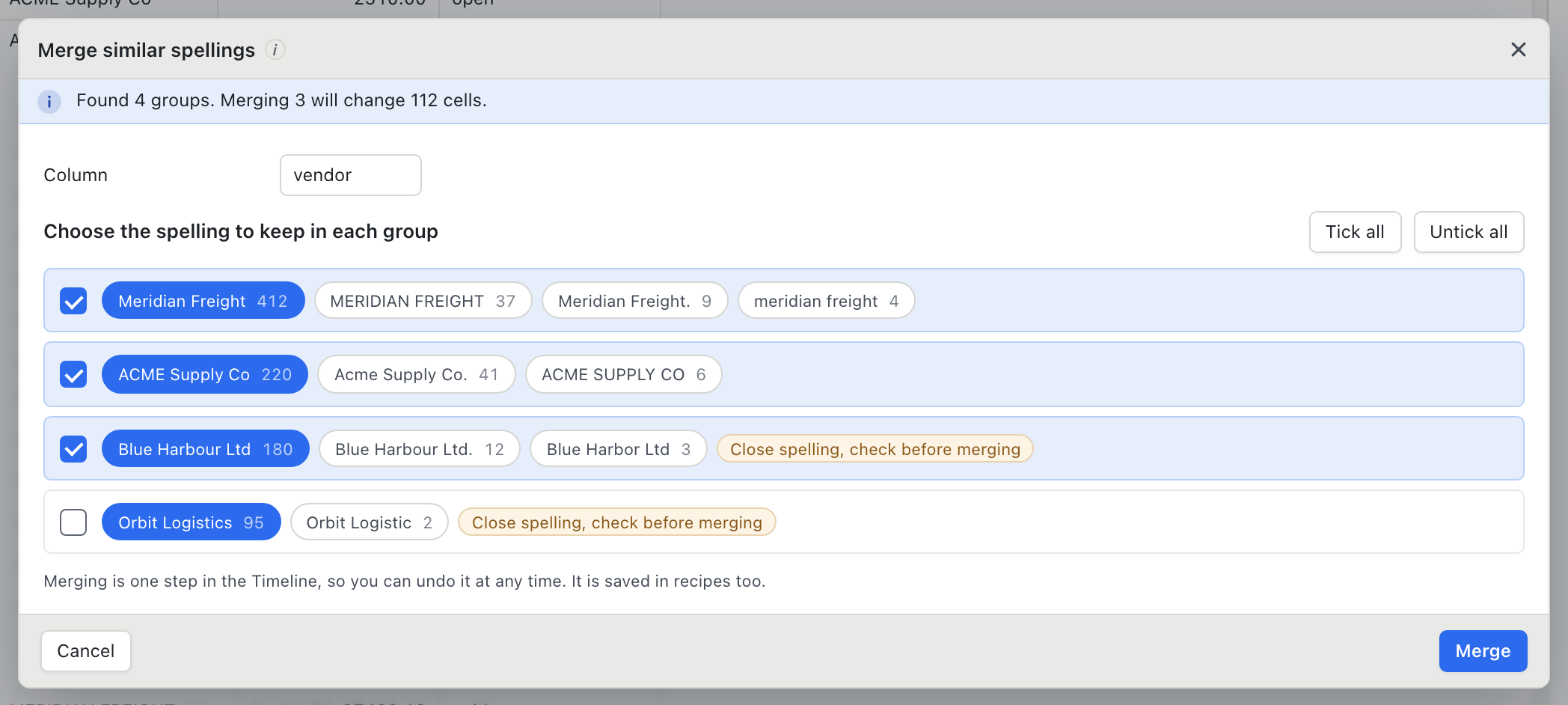
Open the file, choose Clean, Remove duplicate rows, and switch to the Near repeats tab.
- Tick the columns that identify a record, for example name and date of birth, or name and postcode. Rows are compared on those columns only.
- Leave close spelling off for the first pass. You get the groups that differ only in case, spacing, punctuation or word order.
- Read the groups. The first row of each group stays. Untick any group you do not want to touch.
- Turn close spelling on if you want the typo groups too. They arrive unticked.
- Remove. It is a single step on the timeline, so you can undo it, and your original file is untouched until you save.
You can also ask Bix, the assistant, in plain words: “remove near duplicate rows”. It opens the same screen. It does not delete anything on its own.
You stay in charge
Two different people can share a name, so BigXL suggests and you decide. Nothing is removed until you confirm, and it is quick enough to run again with different columns until the groups look right. A list of several hundred thousand rows is checked in about a second.
When exact is still the right tool
If a column is a real identifier, such as an order number or an email address you trust, exact matching is exactly what you want, and it is faster. BigXL keeps both on one screen: Exact repeats for identifiers, Near repeats for names, addresses and free text.
Either way the file stays on your machine. Nothing is uploaded, which matters when the list holds customers, patients or clients. The cleaning tools are part of the paid tiers; opening and browsing files of any size is free.
If your problem is the same name spelled several ways inside one column, rather than whole rows repeating, see the guide on cleaning data, which covers merging similar spellings.
Common questions
Why does Remove Duplicates miss rows that look the same?
Because it compares exact text. A trailing space, a capital letter, a double space or a different order of the same words makes two rows different, even though a person would call them the same record.
Is it safe to let a tool decide which rows are duplicates?
Only if you can see the groups first. BigXL shows each group of similar rows, keeps the first row of each, and removes nothing until you confirm. Groups found by close spelling start unticked, so you look at them before they are included.
Will it merge "Unit 4" and "Unit 5"?
No. Numbers inside the text have to agree, so two addresses that differ only in a number are treated as different rows.
Can I undo it?
Yes. The removal is a single step on the timeline, and your original file is not changed unless you save over it.