How to Compare Two CSV Files and See Exactly What Changed
To compare two CSV exports properly you match rows on a key column, then report what was added, removed and changed. VLOOKUP in both directions misses changed rows and breaks silently on duplicate or blank keys. A dedicated comparison reads both files at full size and tells you which rows differ and in which columns.
Two exports of the same report, a month apart. Or the same evidence pulled twice, or a vendor file before and after they “fixed” it.
Somebody has to answer three questions: which rows are new, which have gone, and which are the same row with different values.
In a spreadsheet this becomes VLOOKUP in one direction to find the missing ones, VLOOKUP in the other direction to find the new ones, a third formula to compare the values, and then manual scanning to work out which of the compared fields actually moved. It is slow, it is where mistakes get introduced, and past a few hundred thousand rows VLOOKUP stops being viable at all.
Here is how to do it properly, and the two ways a comparison lies to you if the tool is careless.
What a comparison has to tell you
A useful comparison sorts every row into exactly one of four buckets, keyed on something stable like an id:
| Bucket | Meaning |
|---|---|
| Changed | The key exists in both files, and at least one other value differs |
| Only in this file | The key is in the old file and not the new one, so the row has gone |
| Only in the other | The key is new |
| The same | The key is in both and every compared value matches |
The counts alone are worth the trip. If you expect 300 new invoices and the comparison says 2,209, something upstream changed and you have found it before it reached a report.
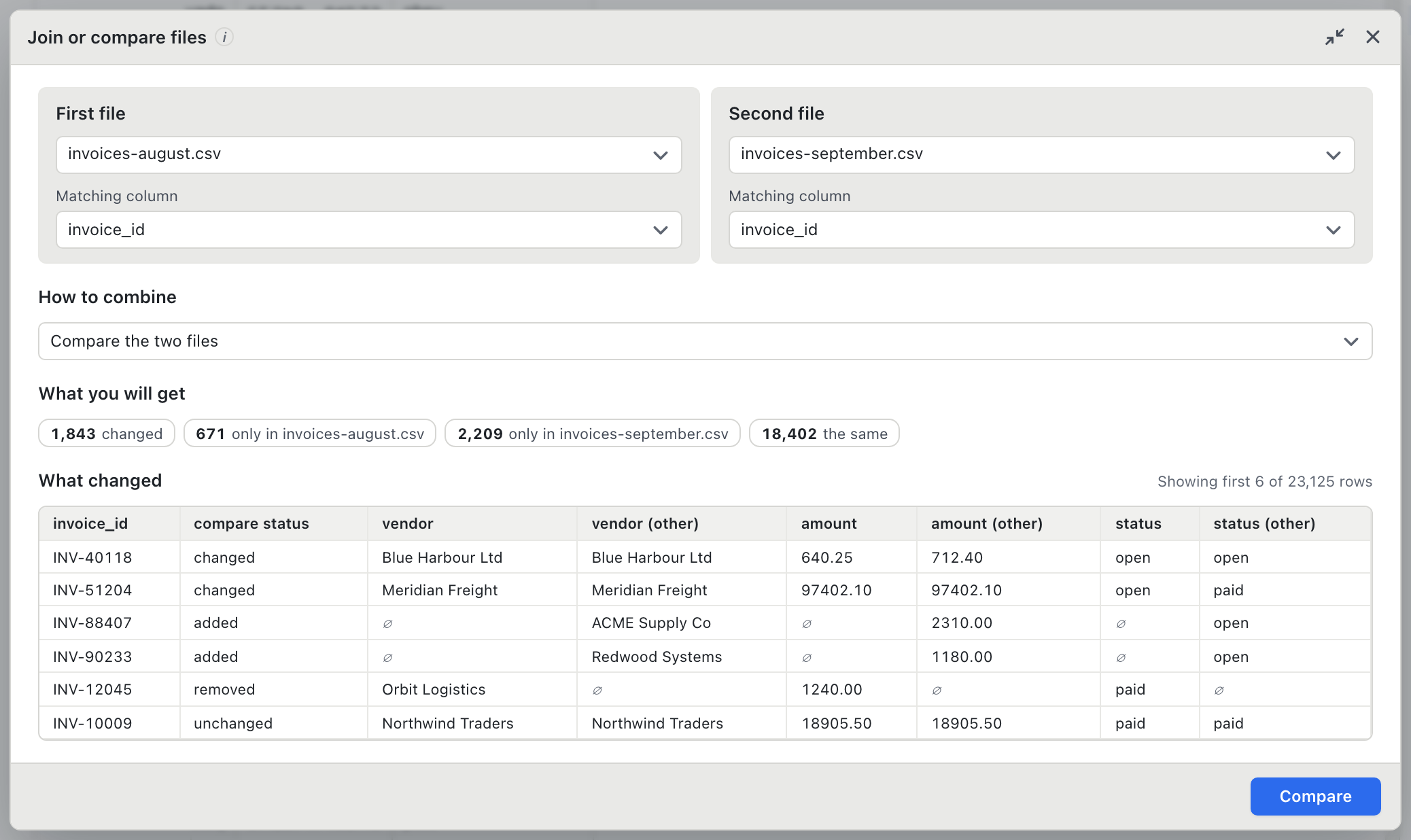
In BigXL you open both files, open the Join panel, choose Compare the two files, and pick the key column on each side. The counts appear before you commit to anything.
Two details that make the result usable rather than merely correct:
- Both values are kept. For every column the two files share you get
amountandamount (other)side by side, so you can see640.25became712.40without going back to either source. - The differences come first. The preview orders changed, then added, then removed, then unchanged. On a large file the first screen should not be a thousand identical rows.
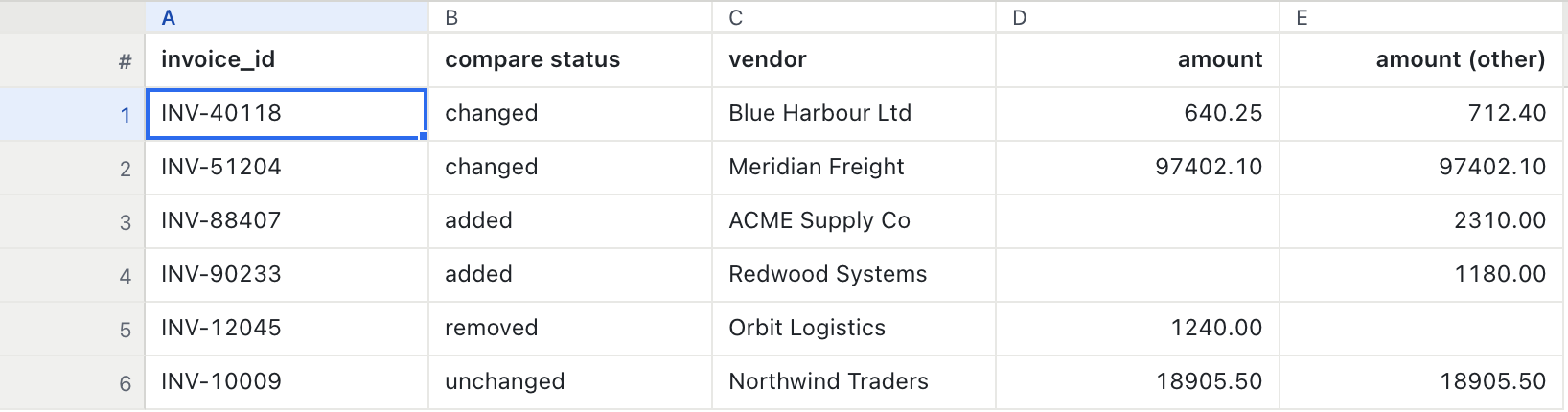
Apply it and the result is an ordinary table you can filter, sort and export. Filter the status column to changed and export that, and you have a change list to send to whoever needs it.
The first way a comparison lies: a key that repeats
Everything above assumes the key appears at most once per file. When it does not, most tools quietly pick one of the candidates and move on.
Think about what that means. If INV-40118 appears twice in August with amounts 640.25 and 712.40, and once in September with 712.40, then “did this invoice change?” has no single answer. A tool that picks the first row says unchanged. A tool that picks the second says changed. Both are guesses presented as facts.
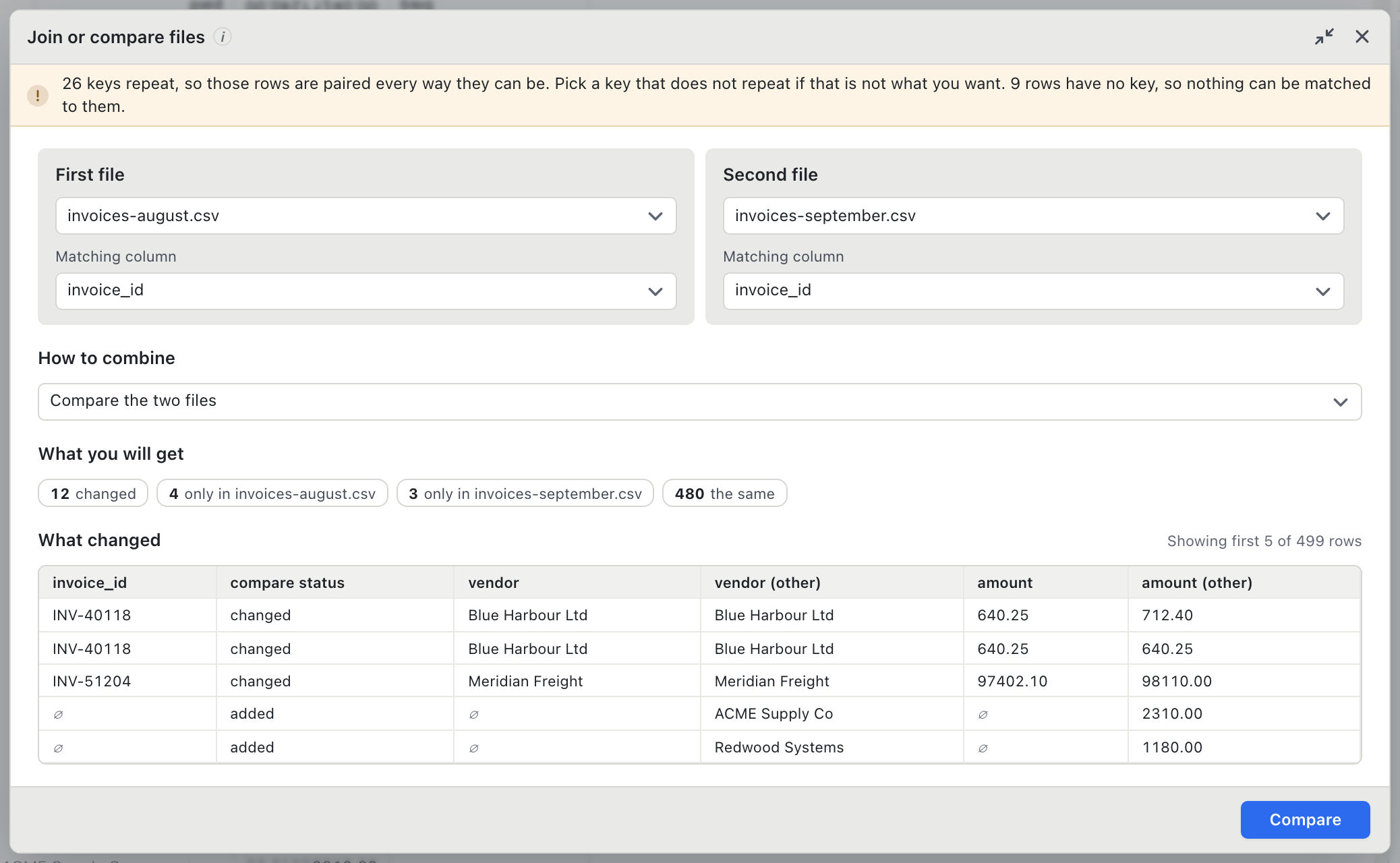
BigXL counts the repeats and tells you before you trust the result: “26 keys repeat, so those rows are paired every way they can be.” Every pairing is shown rather than one being chosen. If that is not what you want, the message says the fix: pick a key that does not repeat, or deduplicate first.
This matters most in exactly the places comparisons matter most. Call detail records repeat identifiers constantly. So do transaction exports where a reference covers several line items. A silent pick in that setting produces a reconciliation that is confidently wrong.
The second way: rows with no key at all
Some rows arrive with the key field empty. Bad export, optional field, a parser that gave up on one line.
A plain SQL join drops them without a word, because NULL = NULL is not true. Your row counts will not add up and there is nothing on screen to explain why.
Worse is a tool that treats blank as a value, in which case every keyless row in one file matches every keyless row in the other and you get a cross product of nonsense.
Neither is acceptable. Two empty keys are not the same key, and they are also not nothing. BigXL reports them: “9 rows have no key, so nothing can be matched to them.” They appear in the result on their own side, unmatched, where you can see them and decide.
Comparing is not joining
| You want | The operation |
|---|---|
| What changed between two versions of the same data | Compare |
| To bring a column across from another file | Join |
| The same columns, more rows | Merge |
A comparison is a full outer join with the differences worked out for you and the traps called out. You can write it yourself in SQL. The reason not to is that the SQL version silently drops null keys and silently multiplies duplicate ones, which is the whole problem.
Try it on six rows you can check by eye
mkdir -p compare-test && cd compare-test
printf 'id,name,amount,status\n1,Ann,100,open\n2,Bob,200,open\n3,Cal,300,closed\n5,Eve,500,open\n' > before.csv
printf 'id,name,amount,status\n1,Ann,100,open\n2,Bob,250,open\n4,Dee,400,open\n5,Eve,500,closed\n' > after.csv
Compare them on id and you should get 2 changed (Bob’s amount, Eve’s status), 1 only in before (Cal), 1 only in after (Dee) and 1 the same (Ann).
Then break it on purpose. Add a second row with id 1 and a different amount, and confirm you are warned rather than quietly given one answer. Add a row with an empty id to each file and confirm they are reported rather than matched to each other.
A comparison tool you have not tried to break is one you are trusting on faith. These two files take ten seconds and tell you whether the tool refuses to guess.
BigXL does all of this on your machine, with no upload and no account, which is the only version that works when the two files you are comparing are evidence, payroll or patient data. The rest of the recurring export jobs are in this walkthrough.
Common questions
How do I compare two CSV files for differences?
Choose the column that identifies a row, such as an ID or an account number, then match on it. BigXL compares both files on that key and lists added, removed and changed rows without you writing a formula.
Why does my VLOOKUP comparison miss rows?
VLOOKUP only tells you whether a key exists in the other file. It says nothing about rows where the key matches but a value changed, and it returns the first match only, so duplicate keys hide real differences.
What if the key column has duplicates or blanks?
Both quietly corrupt a comparison. Duplicate keys make the match ambiguous and blank keys match each other by accident. Check for them before comparing, and pick a different key or a combination of columns if you find them.