Get Started With Bix: Ask, Chart, Clean, and Export Your Data
BigXL lets you ask questions about a file and carry out many spreadsheet tasks in plain English. Its locally running model has been fine-tuned to write DuckDB SQL for data questions, while app tools handle charts, filters, cleaning, joins, pivots, and exports. Bix still has gaps, so review important answers and the SQL behind them.
A question about a spreadsheet usually leads to another task. You need a count, then a chart, then a clean export for someone else. Bix, BigXL’s assistant, lets you do much of that work in plain English, directly on your computer. This guide gives you a small file and exact prompts so you can try it as you read.
The short demo shows the local assistant answering a question about a file. The steps below let you do the same thing yourself.
Try your first question in five minutes
1. Get the sample file. Download the sample invoices CSV. It has 12 fictional invoices and seven columns. There are no real customer records in it. Save the file somewhere easy to find.
2. Open it in BigXL. Choose File > Open or press Cmd+O on a Mac. On Windows and Linux, use Ctrl+O. Pick chat-starter-invoices.csv and wait until the file finishes loading. Ask is a Pro feature, so you need a tier that includes the assistant.
3. Open Bix. Click Bix in the toolbar or press Cmd+J on a Mac, Ctrl+J on Windows or Linux. The first opening can take a moment while the local model loads. You will see the file name at the top of the chat panel.
4. Type this prompt:
how many invoices failed the control
The answer should be 4. BigXL writes a DuckDB query, runs it locally, and shows the answer in a table. Under the answer, click Show the query. Look for a condition using control_result and failed. The count alone is useful, but seeing the condition tells you what was actually counted.
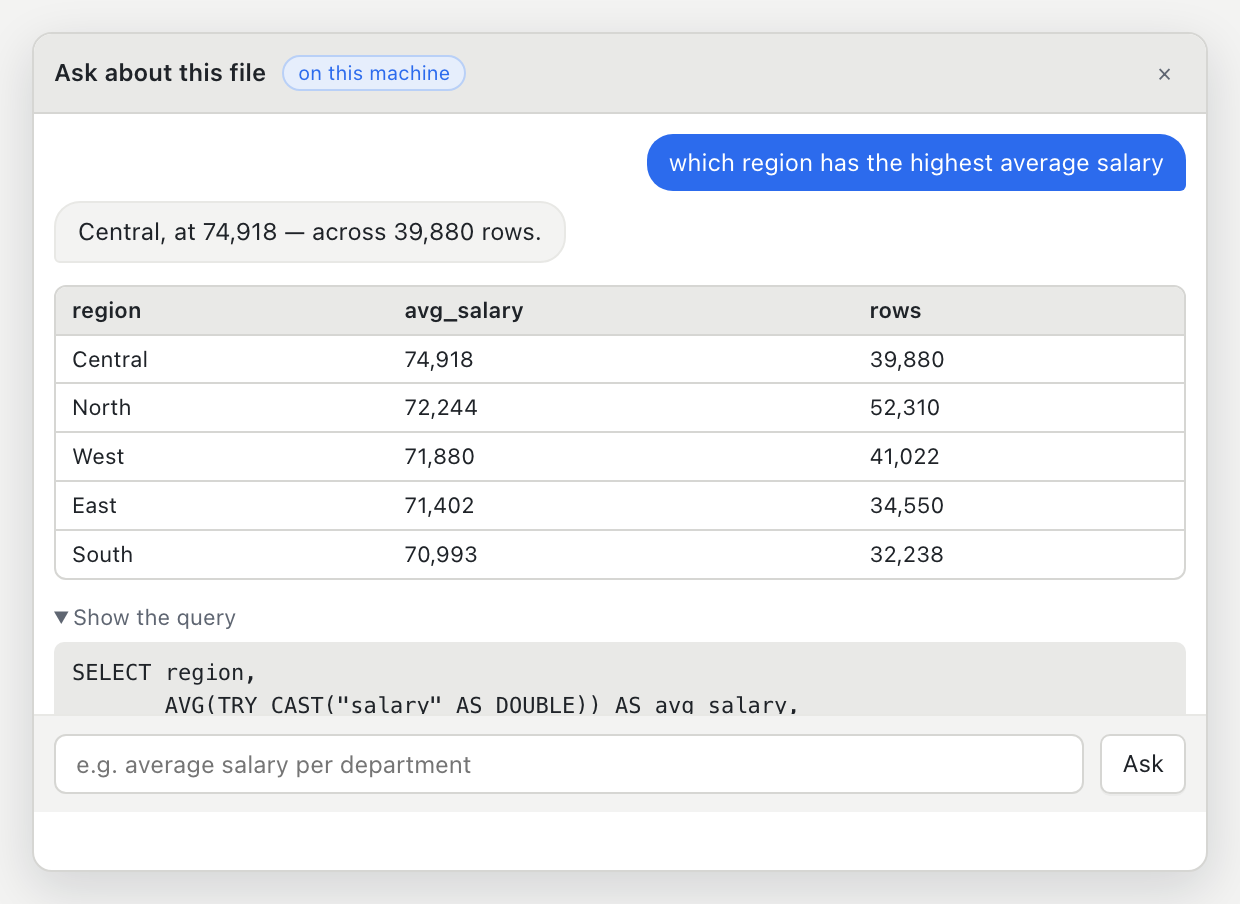
The screenshot uses a staff file to show the same Ask controls. Your invoice answer will have different columns and values.
5. Ask a second question:
total amount_usd for invoices with failed controls
The result should be 750. The four failed invoices have amounts of 75, 125, 250, and 300. This is a useful habit for your own files too. State the column and condition clearly, then check them in Show the query.
Turn the question into a chart
In the same Bix panel, type:
bar chart of invoices by department
BigXL should open a bar chart. In this sample, Finance, Operations, and Sales each have four invoices. This is a deliberately simple check that makes it easy to see whether the grouping matches the file. With your own data, you can ask for a line chart over time, a heatmap across two categories, or a Pareto chart of common reasons. BigXL offers more chart choices in the chart panel, including stacked and grouped bars, treemaps, and distributions.
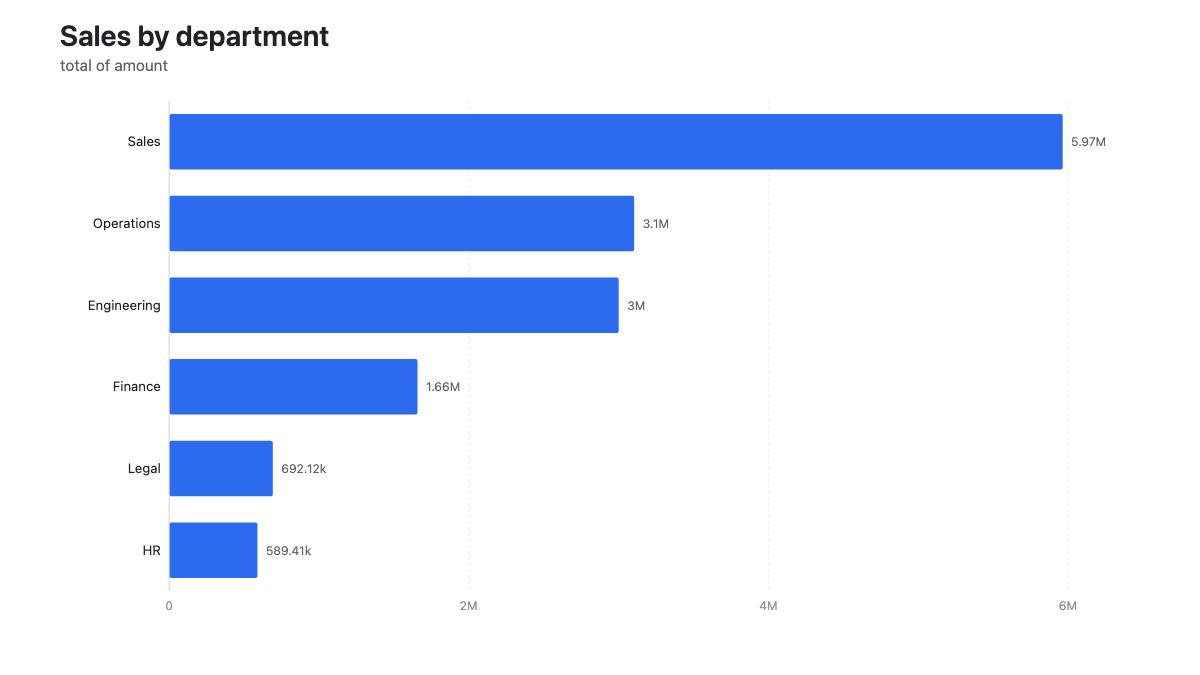
The chart above uses a larger sales file. For guidance on picking a chart that fits your question, see the chart guide.
Check exceptions and save an answer
Ask one more question on the invoice sample:
how many invoices have duplicate_flag yes
The answer should be 2. The flag marks invoices INV-004 and INV-009. It does not prove that those rows are duplicates, so review them before removing anything.
For a query answer you want to keep, click Export below its SQL. Choose a location and save the full result as CSV, TSV, JSON, or Parquet. This exports the answer to that query. To export the current spreadsheet view after filtering or cleaning, use the main Export control instead.
Use chat for the work around the answer
The invoice walkthrough is only the start. Ask can route many everyday requests to the right spreadsheet tool:
| What you need | Try saying | What to expect |
|---|---|---|
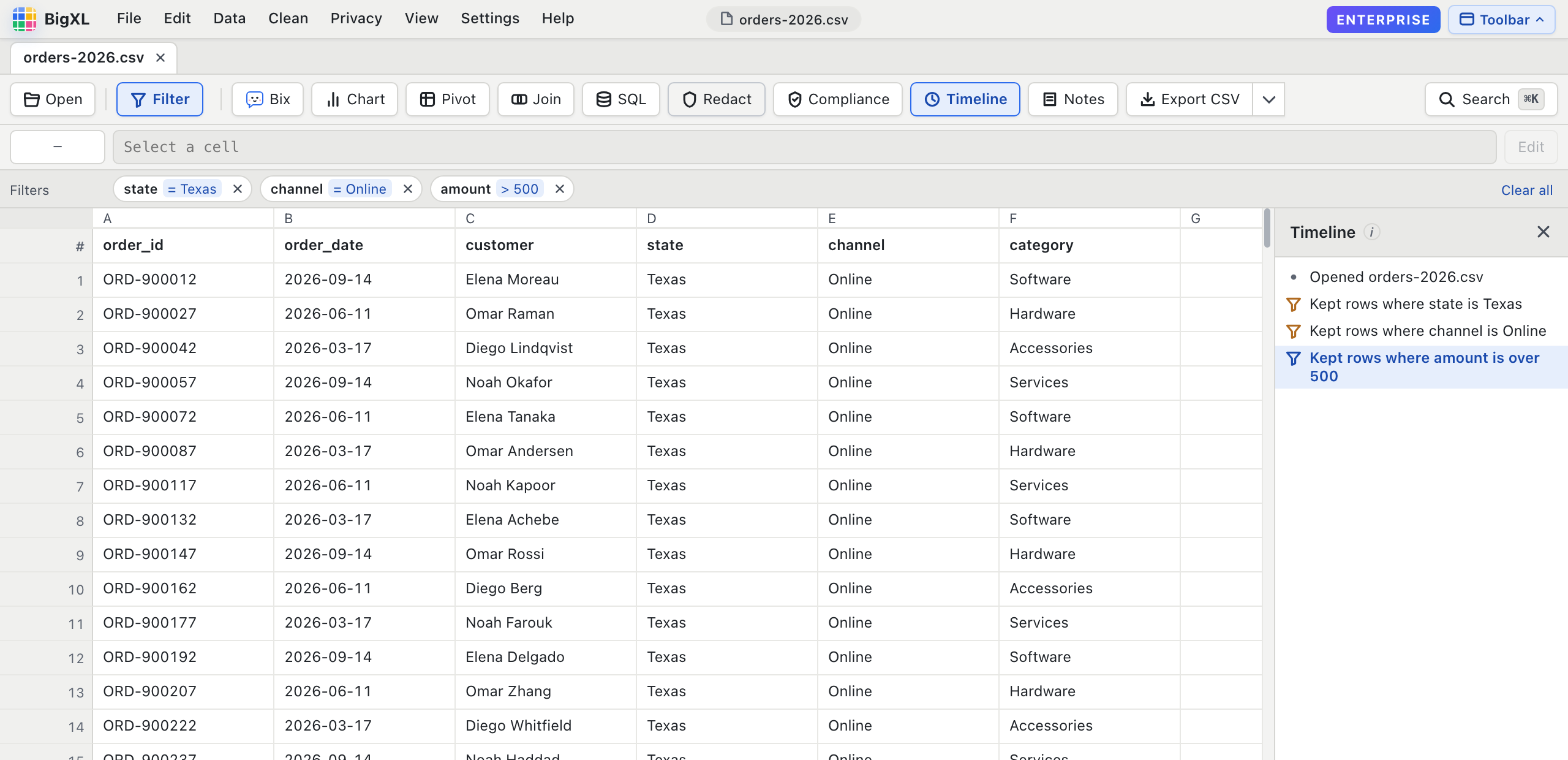
| Narrow a view | keep only rows where control_result is failed |
The sheet filters to matching rows and the step appears in the timeline. |
| Inspect a column | describe amount_usd |
BigXL shows a summary of the column. |
| Fix messy values | force amount_usd to numbers |
BigXL shows a conversion preview and asks you to handle values it cannot read. |
| Remove repeats | remove duplicates by invoice_id |
BigXL uses that key to find repeated rows. Review the key first. |
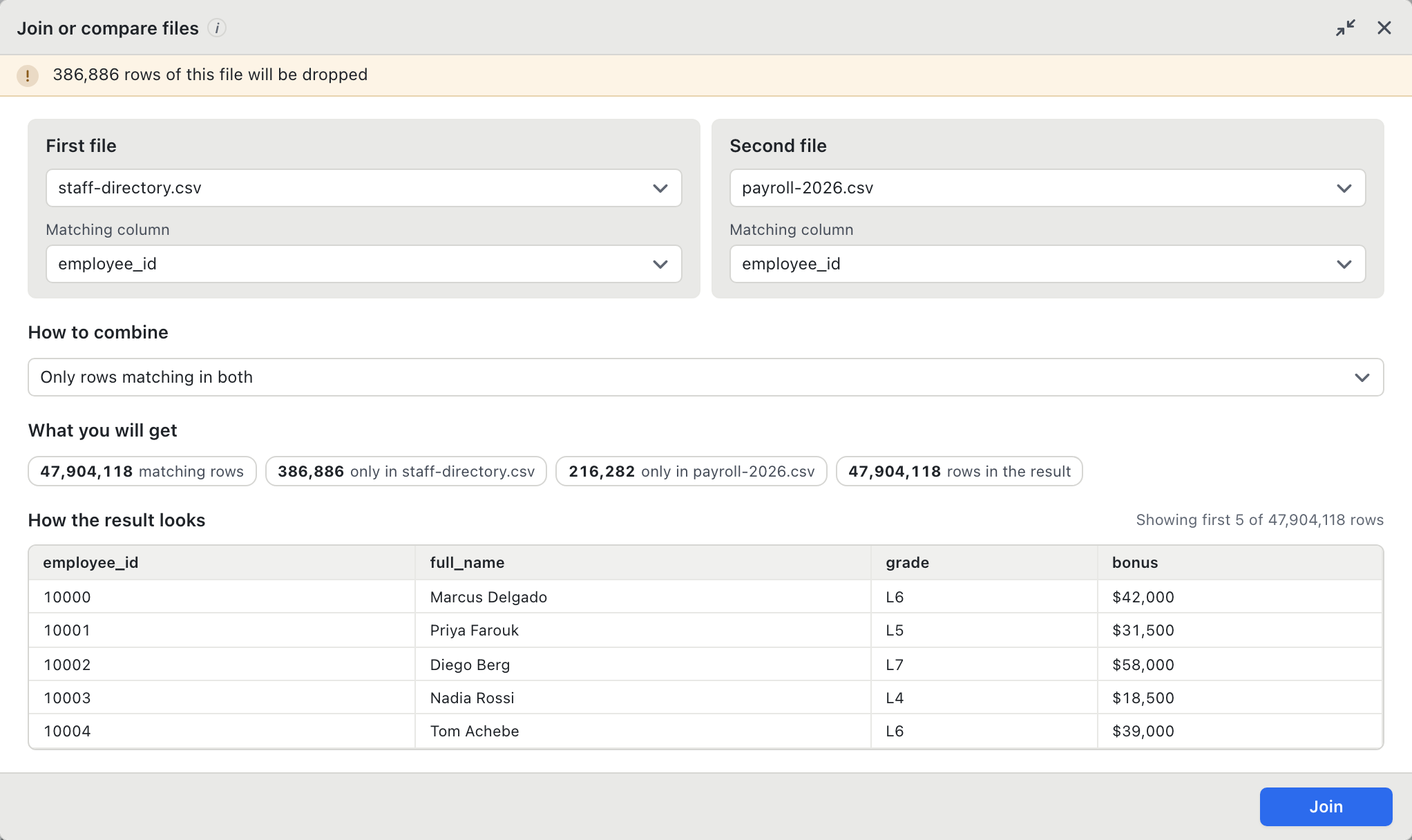
| Combine files | join this with the other open file |
BigXL opens a join preview where you choose the file and matching columns. |
| Build a cross-tab | pivot amount_usd by department and control_result |
BigXL presents a pivot with those fields when the request can be resolved. |
| Save a view | export as excel |
BigXL opens an export flow for the current view. |
Some actions happen on the sheet, while others open a control or a preview for you to complete. A join, for example, needs you to verify the matching columns and how unmatched rows should be handled. Changes are recorded in BigXL’s timeline, so you can revisit an earlier step.
For more involved work, see cleaning recurring exports and joining large CSV files. The Bix guide lists more commands and explains how the assistant works.
Take the pattern to your own work
Once the sample makes sense, replace its field names with the ones in your file. These are the kinds of direct questions that worked in our local domain evaluation:
| If your file contains | Start with a question like |
|---|---|
Hospital information with a State column |
how many hospitals are in CA |
| Campaign records with a subscription field | how many contacts subscribed to a term deposit |
| A document review log | how many Orion documents have pending review |
| An evidence log with seal status | how many evidence items have broken seals |
If your columns use different names, say those names in your question. For example, a field called review_state may need that exact name instead of “status.” Ask one clear question first, then check the result before moving to a chart or an export. For legal, healthcare, financial, or forensic decisions, compare the answer with the underlying records and the generated query.
Built for private work, with a reviewable result
BigXL’s current v5 model has been fine-tuned for spreadsheet questions, especially turning plain English into DuckDB SQL. Bix also uses app logic for recognized commands and chart choices. The model, DuckDB, and your file run on your device. BigXL does not collect app-user files or chat history for model training.
That makes chat useful for work where uploading a file is not an option. A hospital operations team can count facilities by state and chart the distribution. An auditor can find failed controls and total their amounts. A legal team can identify records by matter and review status. An investigator can inspect chain-of-custody exceptions. These examples depend on the fields present in the file. Chat cannot establish facts that the data does not contain.
Bix is powerful today and still evolving. Complex questions and follow-ups can occasionally need a second look, so the result and the query behind it remain visible for you to review. We keep improving the assistant with public and synthetic examples while your files and conversations stay on your device.
You can start now with the sample invoices CSV. Open it, ask the first question, and follow the result wherever your work needs to go. Get BigXL and keep the getting started guide nearby.
Common questions
Has BigXL's AI model been fine-tuned?
Yes. The current v5 model was fine-tuned for BigXL's data questions and DuckDB SQL. BigXL also uses app logic to route requests to charts and spreadsheet actions.
Can I use Bix without uploading my files?
Yes. The model, queries, and spreadsheet operations run on your device. BigXL does not collect your files or chat history for model training.
Can chat complete every data task on its own?
Not yet. It can answer questions and start many common analysis and cleaning steps, with previews for some changes. Some multi-condition questions and follow-ups can still fail, so check important results before using them.
How do I try Bix for the first time?
Download the sample invoice CSV in this guide, open it in BigXL, click Bix, and type "how many invoices failed the control". The answer should be 4. Open Show the query to check that the control_result column was filtered to failed.