21 Types of Charts and Graphs, and When to Use Each One
Pick a chart by the question you are asking. To rank categories use a bar chart. To show change over time use a line chart. To show parts of a whole use a donut or a treemap. To compare two columns at once use stacked or grouped bars, a heatmap or a sankey. To see how values are spread use a histogram or a box plot. The chart follows the question, not the other way round.
Most chart guides list the shapes. The harder question is which one to reach for, and that depends on the question you are asking, not on which chart looks impressive.
This is every chart BigXL draws, twenty one of them, each with a real example generated from the same sales file. For each one: the question it answers, and when to pick something else.
Start from the question
| What you want to know | Columns you have | Use |
|---|---|---|
| Which category is biggest | one category, one number | Bar chart |
| How something changed over time | a date, one number | Line chart |
| How the whole splits up | one category, one number | Donut or treemap |
| How values are spread | one number | Histogram or box plot |
| How two things combine | two categories, one number | Stacked or grouped bars |
| Where the hot spots are | two categories, one number | Heatmap |
| Which few causes explain most of it | one category, one number | Pareto |
| How a total was arrived at | one category, one number | Waterfall |
| How things flow from A to B | two categories, one number | Sankey |
The split matters more than it sounds. Eleven of these charts read a single column. The other ten compare two columns at once, and they need a second column with few enough values to tell apart by colour.
Charts that read one column
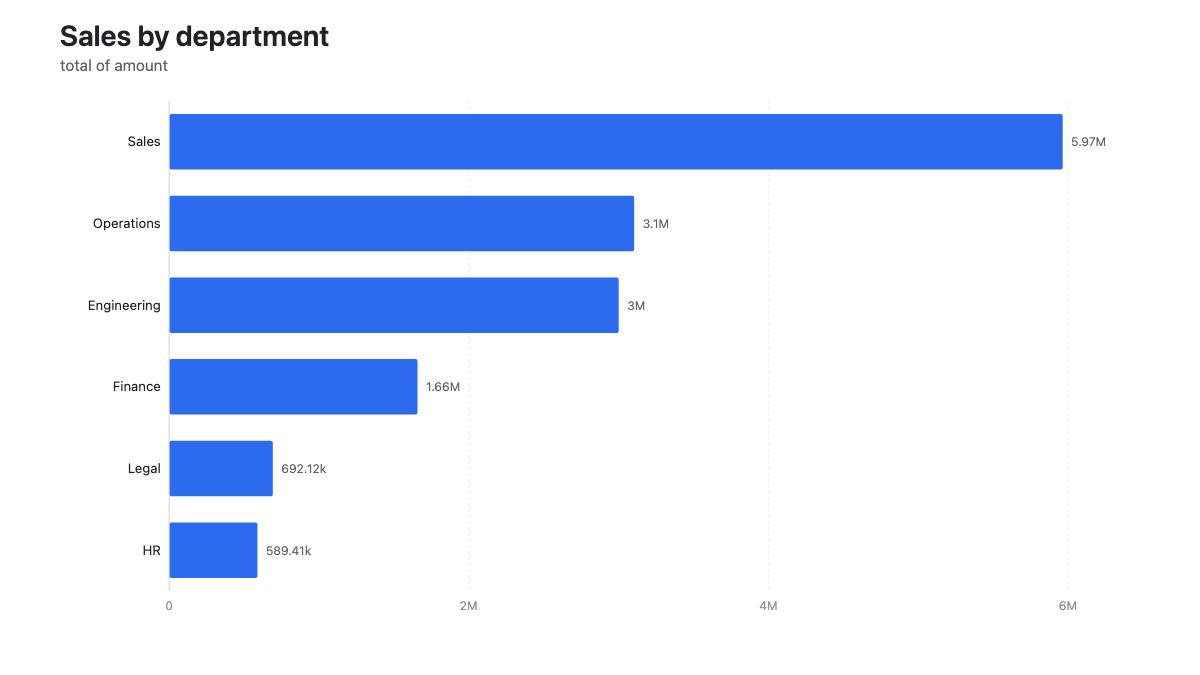
Bar chart
The most useful chart there is, and the one to default to. Categories run down the side, length runs across. People judge length more accurately than angle, area or colour, so a bar chart is the most honest way to compare separate things.
Use it to rank. Use it when category names are long, because horizontal labels have room to breathe.
Column chart
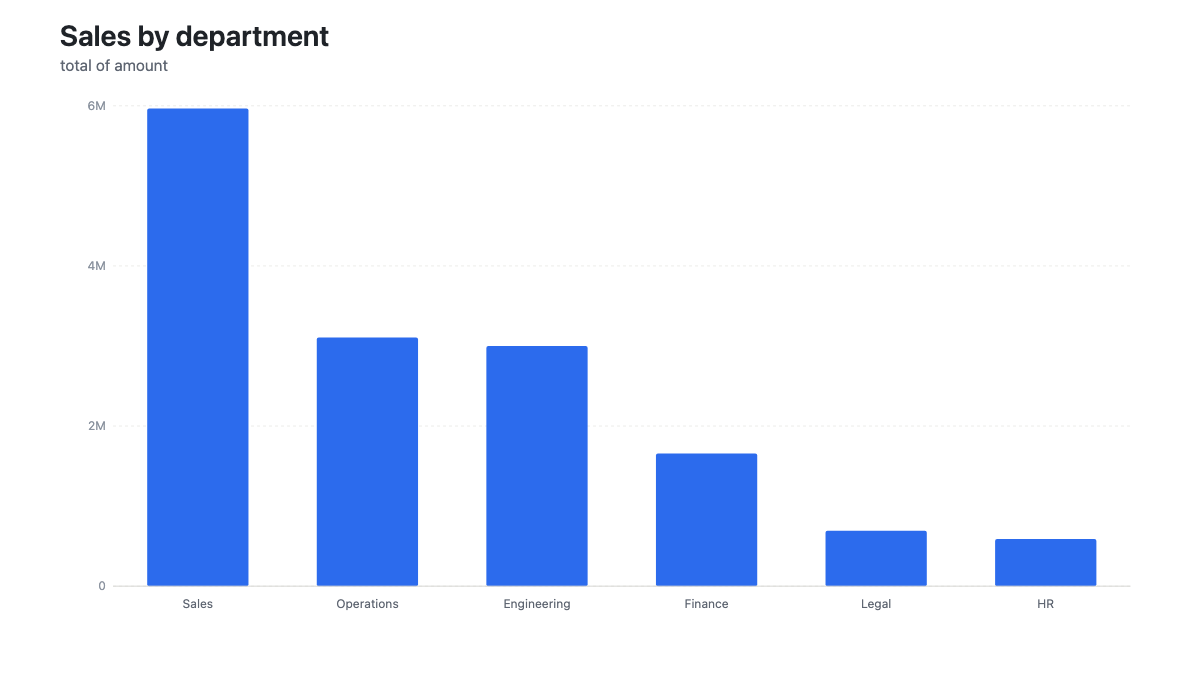
The same comparison stood upright. Columns suit short labels and a natural order, especially months or quarters, where left to right reads as time passing.
Use a column chart when the category has an order. Use a bar chart when it does not and the names are long.
Dot plot
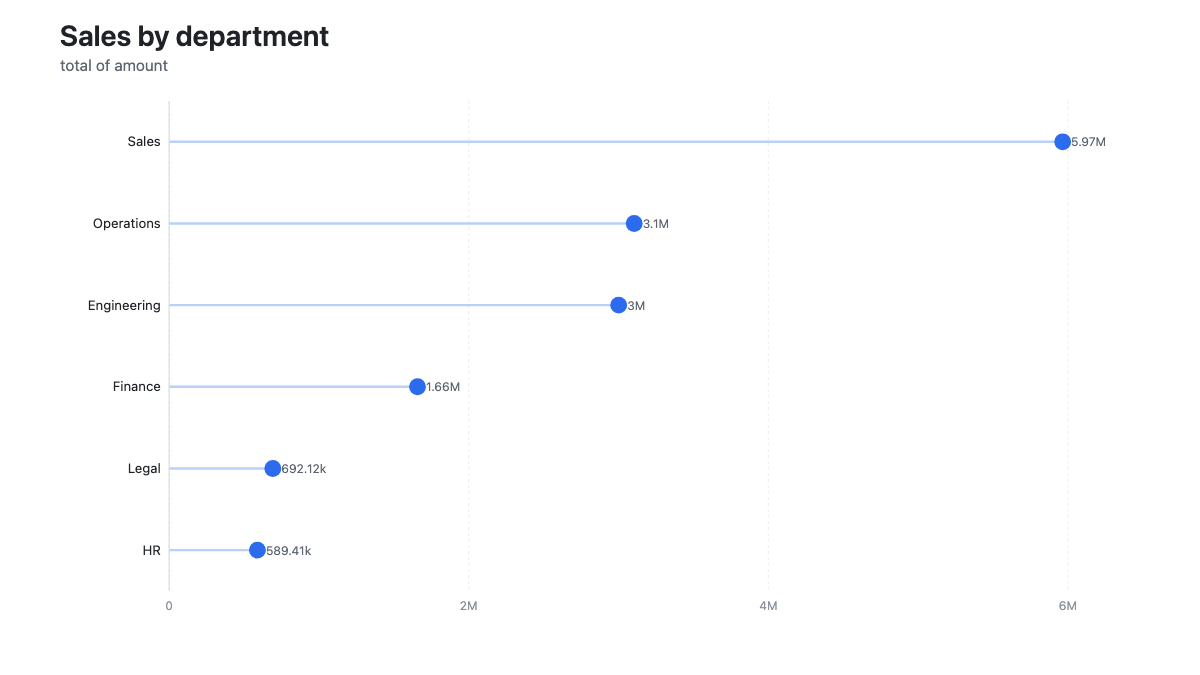
A bar chart with the bars removed, sometimes called a lollipop chart. When totals are close together, full bars from zero all look the same length and the differences vanish.
BigXL suggests this automatically when your values differ by under twenty five percent, and it says on the chart that the scale does not start at zero.
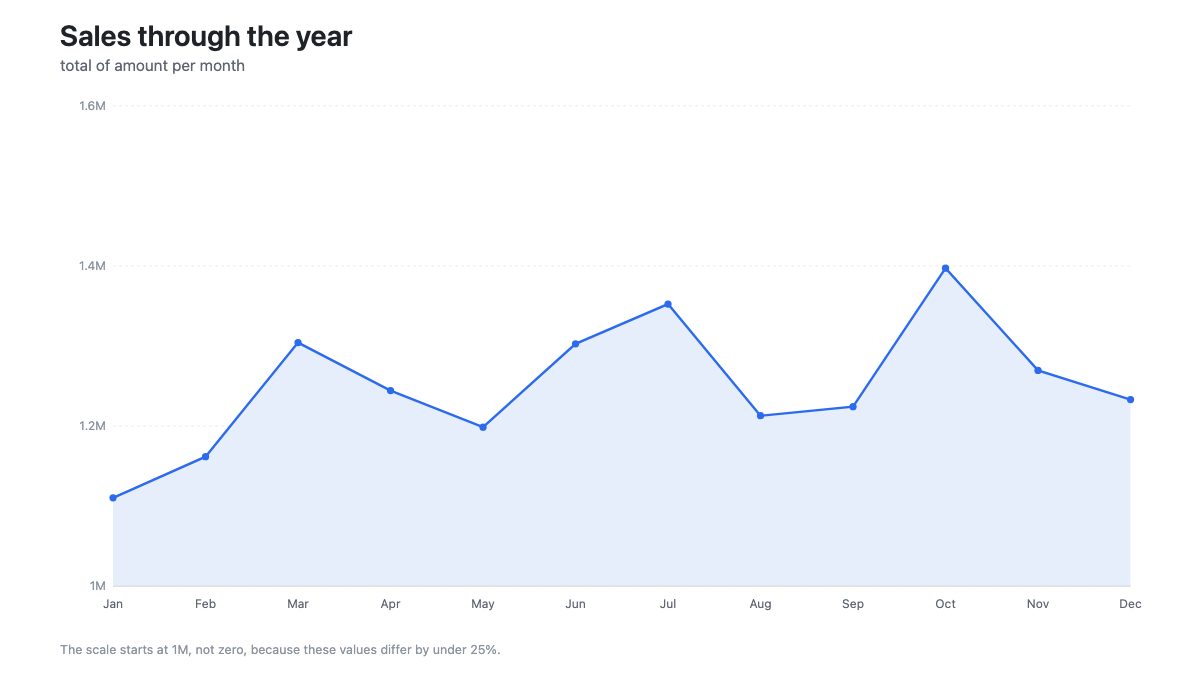
Line chart
Time along the bottom, value up the side. The shape is the point: the direction, where it turned, how steady it is.
Only use a line when the order along the bottom means something. A line joining unordered categories implies a trend that is not there.
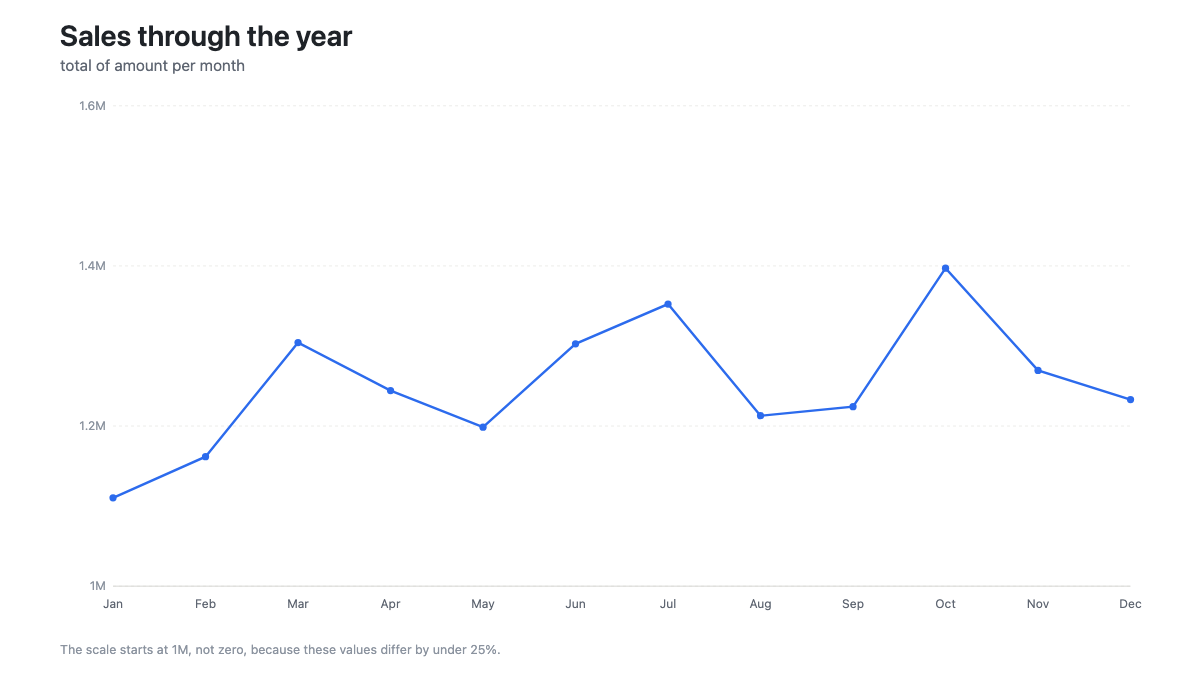
Notice the note under that chart. The scale starts at 1M rather than zero, because these months differ by under twenty five percent and a zero baseline would flatten the line into a straight bar. BigXL says so on the chart rather than letting the shape overstate the change.
Area chart
A line chart with the space beneath filled in. Use it when the accumulated volume matters as much as the direction, such as total spend rather than the rate of spend.
For a single series the line and the area say the same thing, so pick whichever reads better in the room.
Pie chart
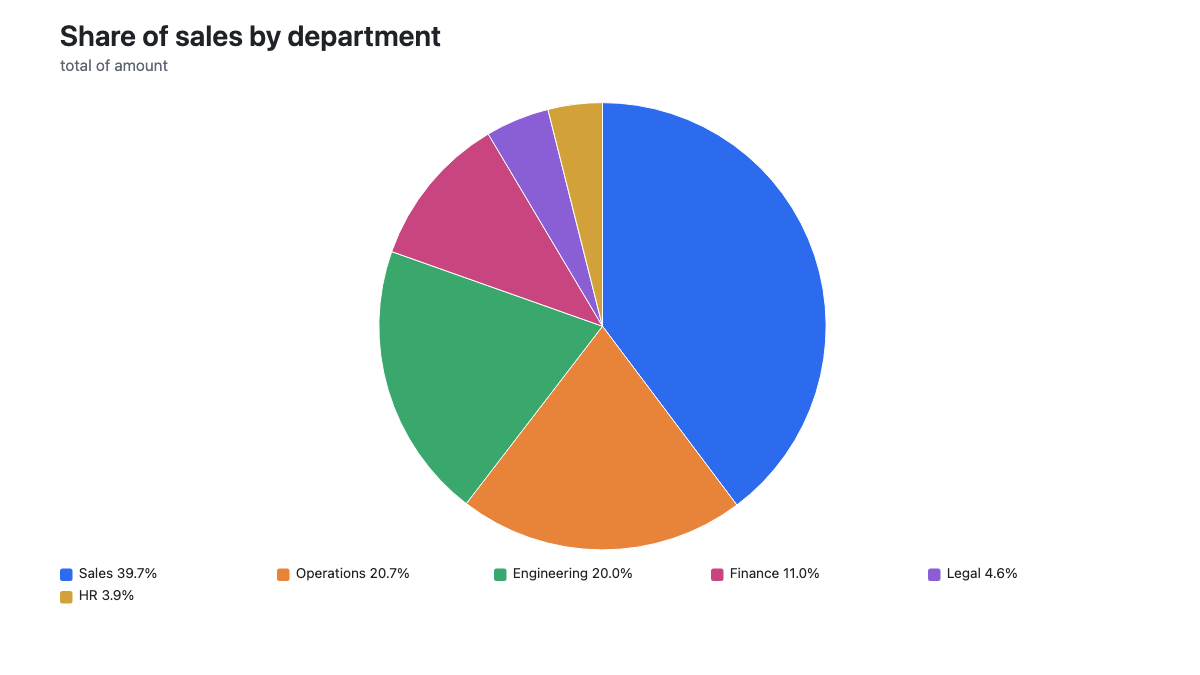
Parts of a whole, when there are only a few parts. A pie answers “roughly what share” at a glance and nothing more precise than that.
Keep it to a handful of slices. Past about eight, the slices get thin, the labels collide and a bar chart or treemap does the job better. BigXL stops offering a pie once a column has too many distinct values.
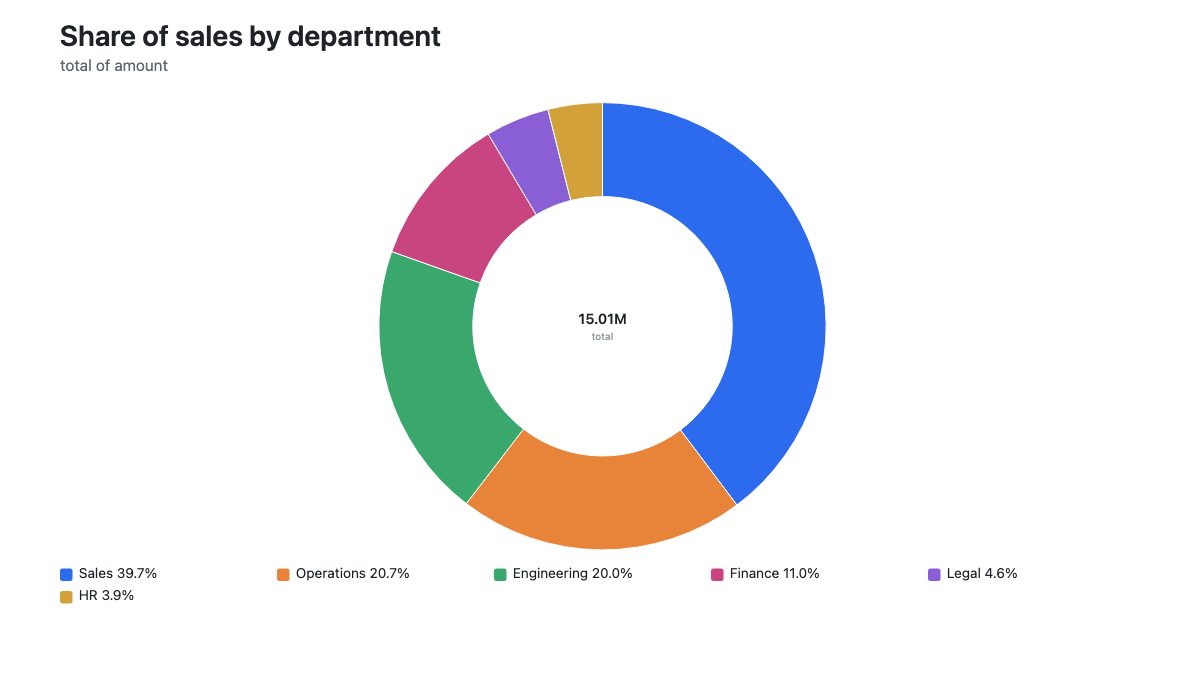
Donut chart
A pie with the middle removed, which buys room for the total in the centre. That total is often the number people actually wanted.
Histogram
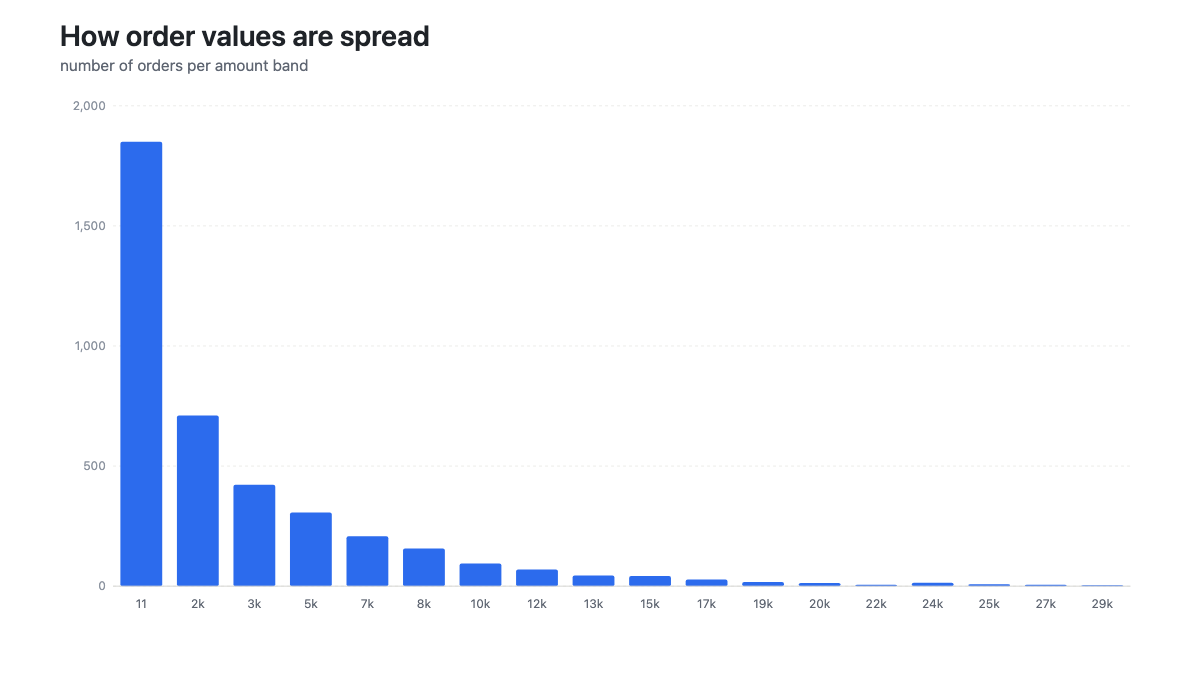
Not a bar chart. A histogram takes one number column, cuts the range into bands, and counts how many rows land in each. It answers “what does normal look like here, and what is unusual”.
This is the fastest way to spot a problem in a column: a spike at zero, a long tail, two humps where you expected one.
Pareto chart
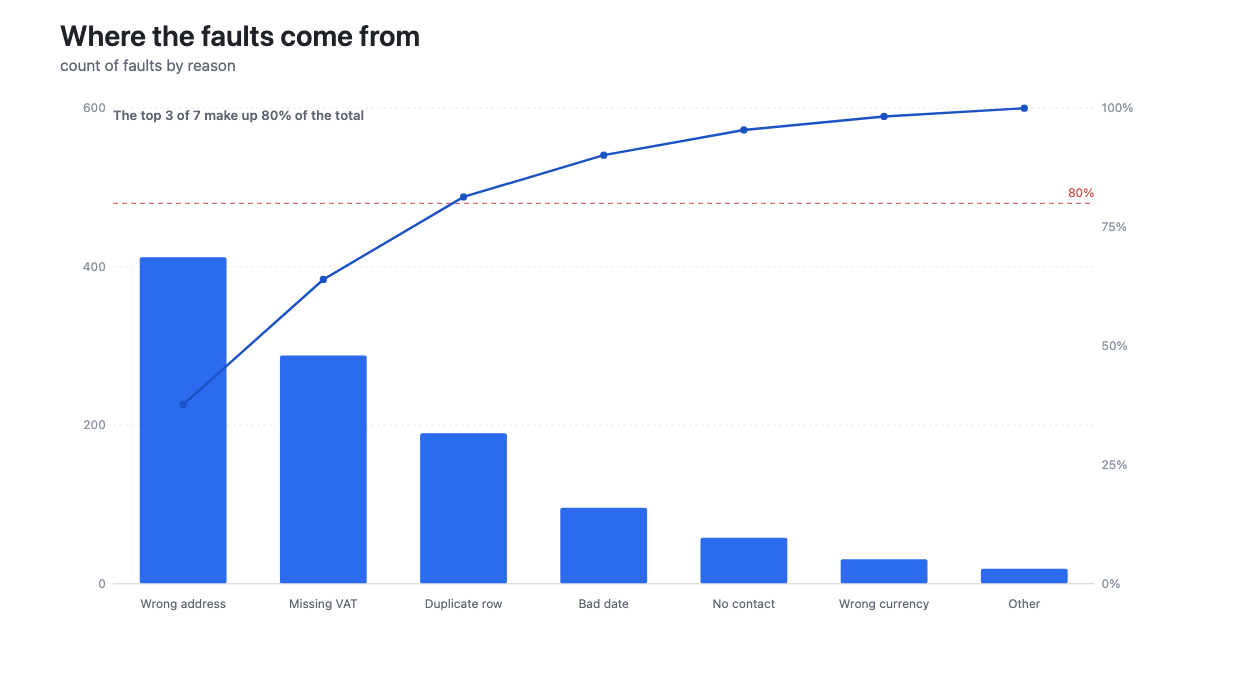
Bars ranked largest first, with a line showing the running share of the total climbing to 100%. The question it answers is “how few of these explain most of it”, and the answer is usually “fewer than you think”.
This is the chart for a list of fault reasons, support categories, or customers by spend. BigXL works out where the line crosses 80% and writes the finding on the chart itself, so it survives into the exported image.
Waterfall chart
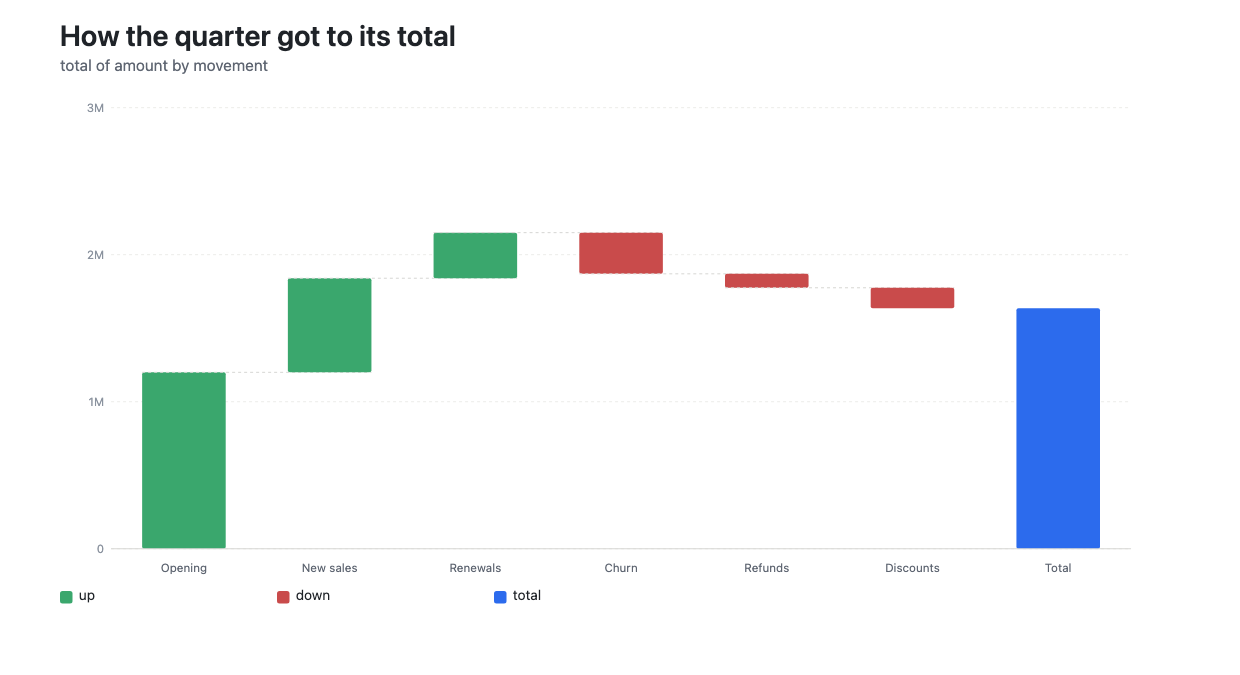
A running total. Each bar starts where the last one finished, green for what was added, red for what was taken away, and a final bar showing where you ended up.
The finance and audit staple: opening balance, the moves, closing balance. Use it whenever the question is not “how big is this” but “how did it get to this”.
Box plot
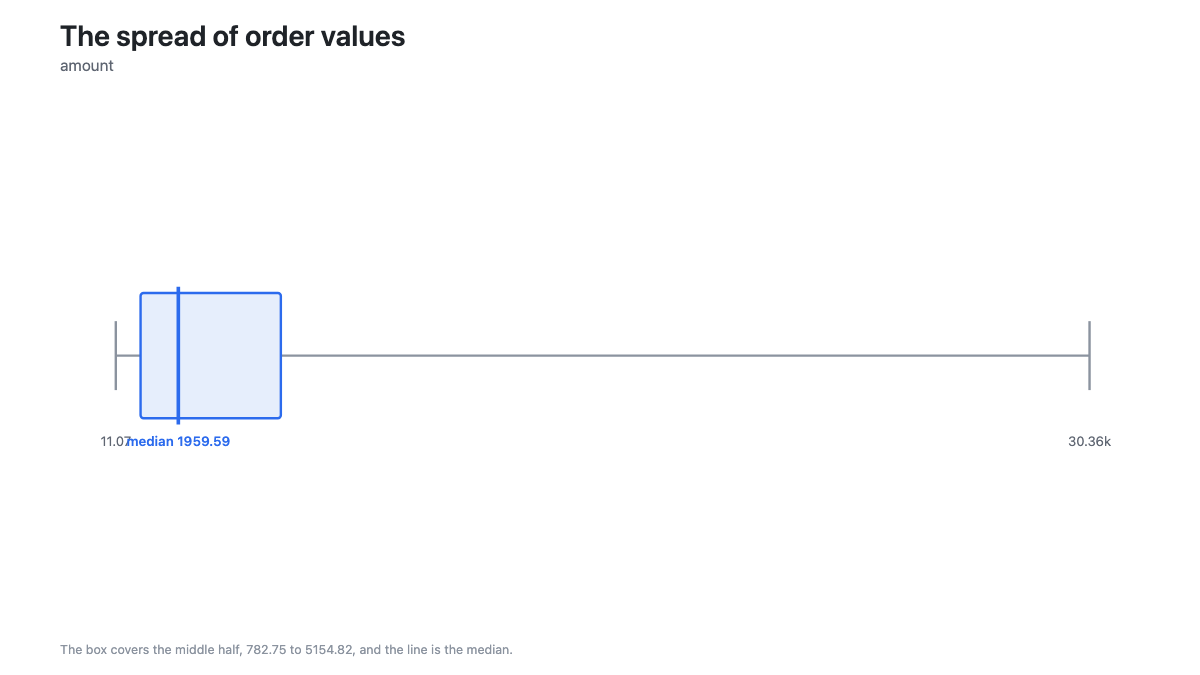
The same spread, compressed to five numbers: the lowest, the middle half, the median and the highest. Less detail than a histogram, but it fits in one line and makes outliers obvious.
Reach for it when the question is “is this value unusual” rather than “what is the shape”.
Charts that compare two columns
These need a second column to split by. In BigXL you pick it in the split by dropdown, or just click one of these charts and it picks a sensible second column for you.
A second column only works if it has few enough values to tell apart. Splitting by an ID column with eight hundred values produces a legend nobody can read, so BigXL greys those columns out and says why rather than drawing it.
Stacked bar chart
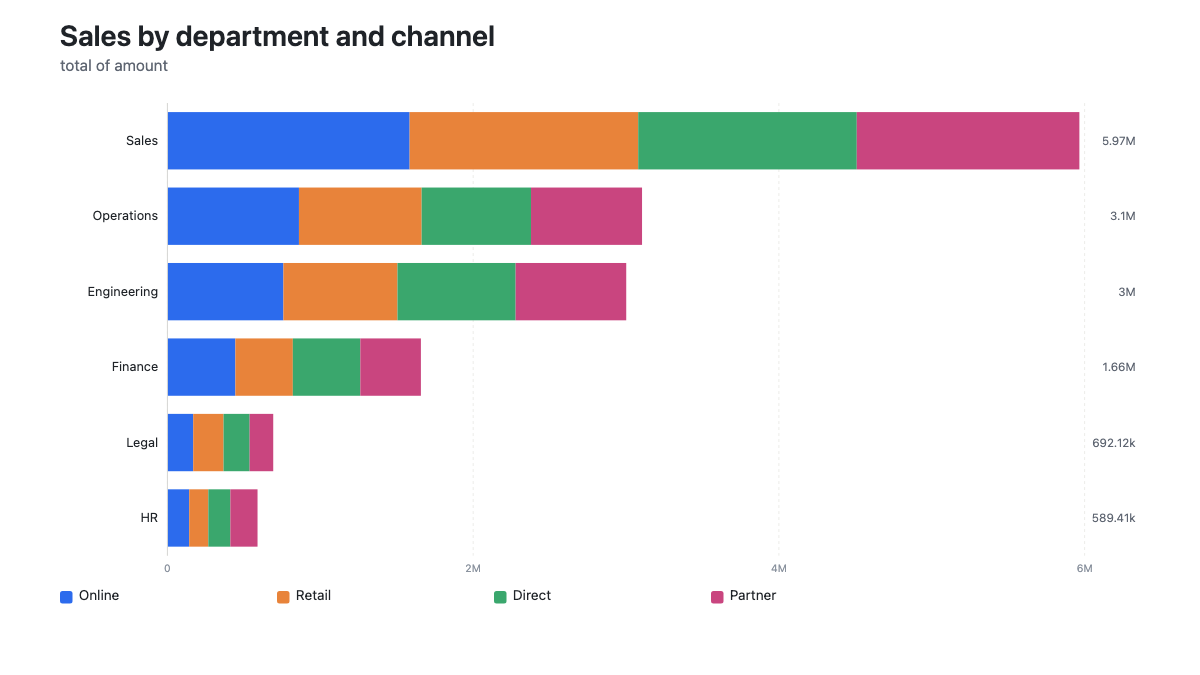
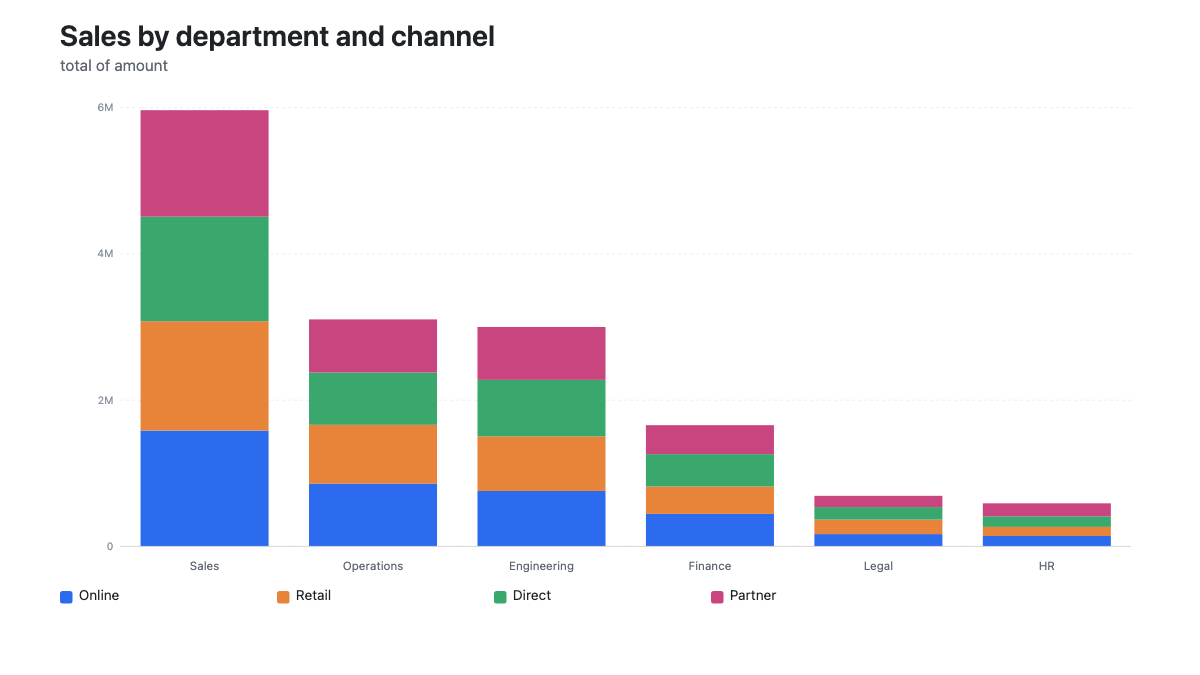
Also called a segmented bar chart. Each bar is a whole, cut into coloured parts. Good for the total and the rough mix at the same time.
The first segment is easy to compare across bars because they all start at the same place. The ones stacked above it are harder, since they start somewhere different each time. If the mix matters more than the total, use 100% stacked instead.
Stacked column chart
The same thing upright. Better when the category along the bottom has an order, such as months.
Grouped bar chart
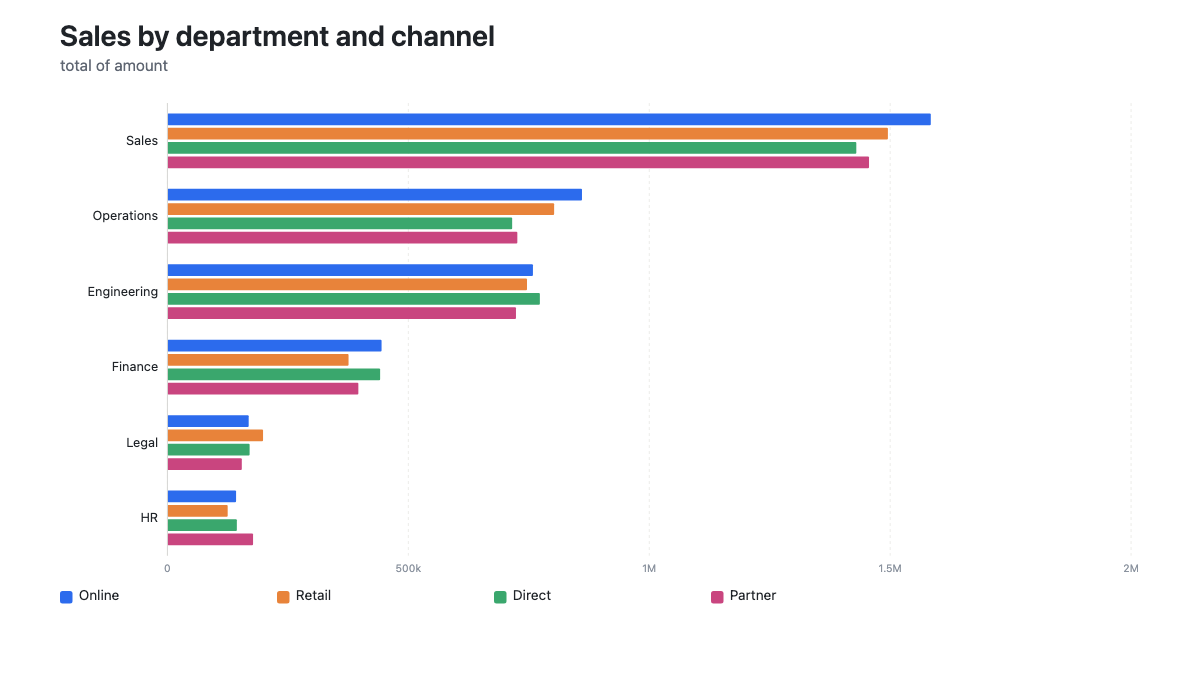
Sometimes called a clustered bar chart. Instead of stacking, the parts sit side by side sharing a baseline, so every segment can be compared against every other.
Use grouped when comparing the parts matters. Use stacked when the total matters. You cannot have both perfectly, which is why both exist.
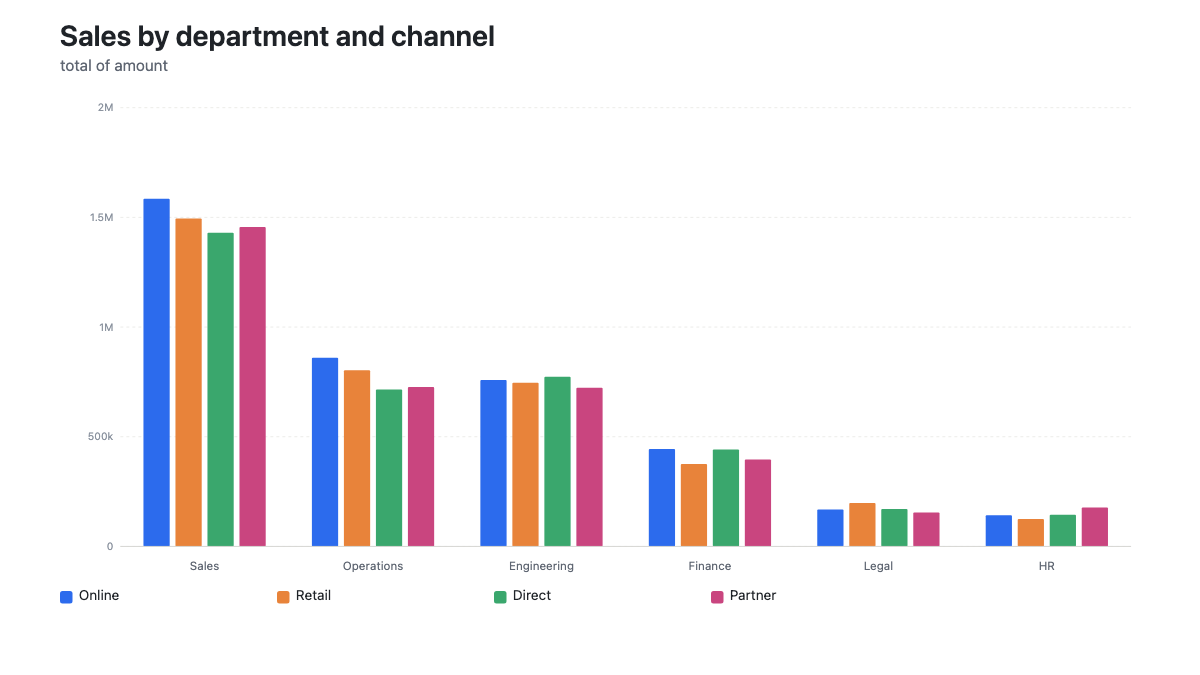
Grouped column chart
Grouped bars stood upright, for ordered categories or short names.
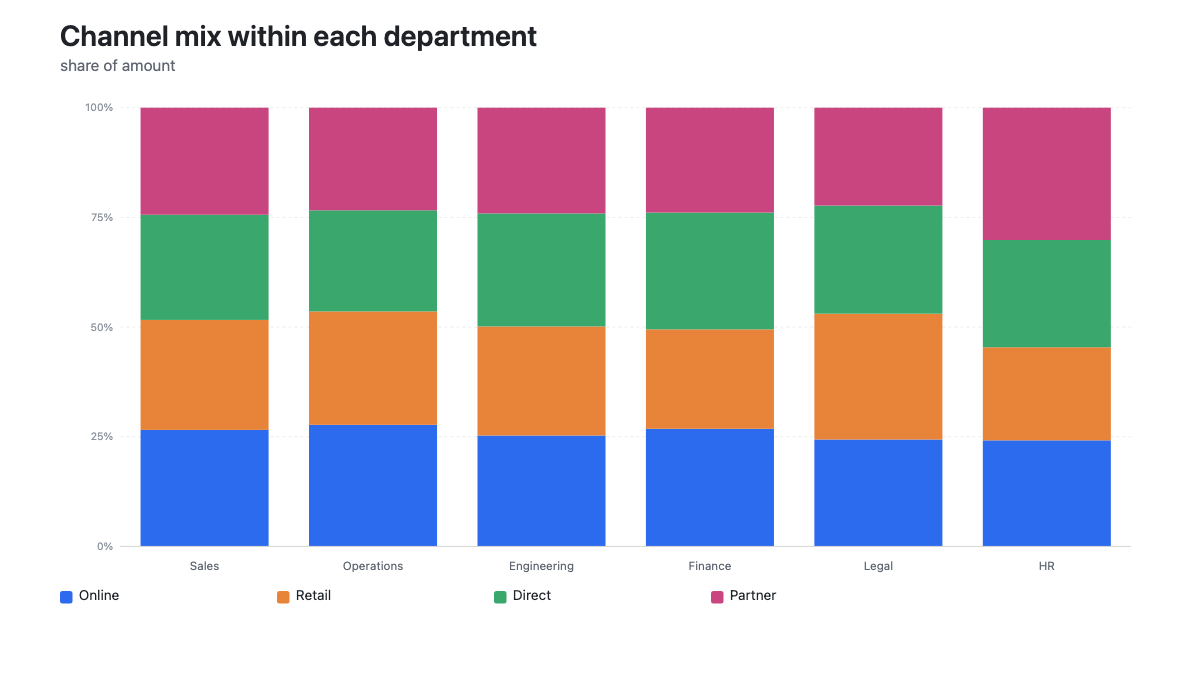
100% stacked bar chart
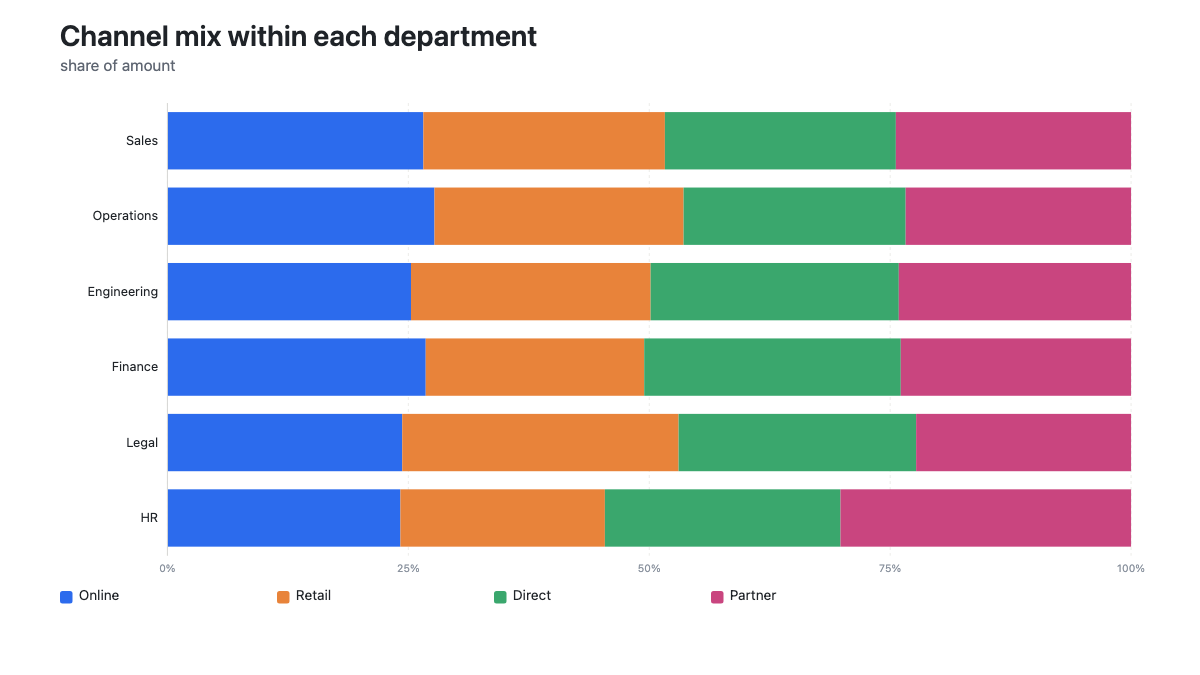
Every bar stretched to the same length, so only the mix shows. Totals disappear entirely, which is the point.
This is the right chart for “is the channel mix the same across departments”, and the wrong chart for “which department is biggest”. HR and Sales look identical here even though Sales is roughly ten times the size.
100% stacked column chart
The same, upright.
Heatmap
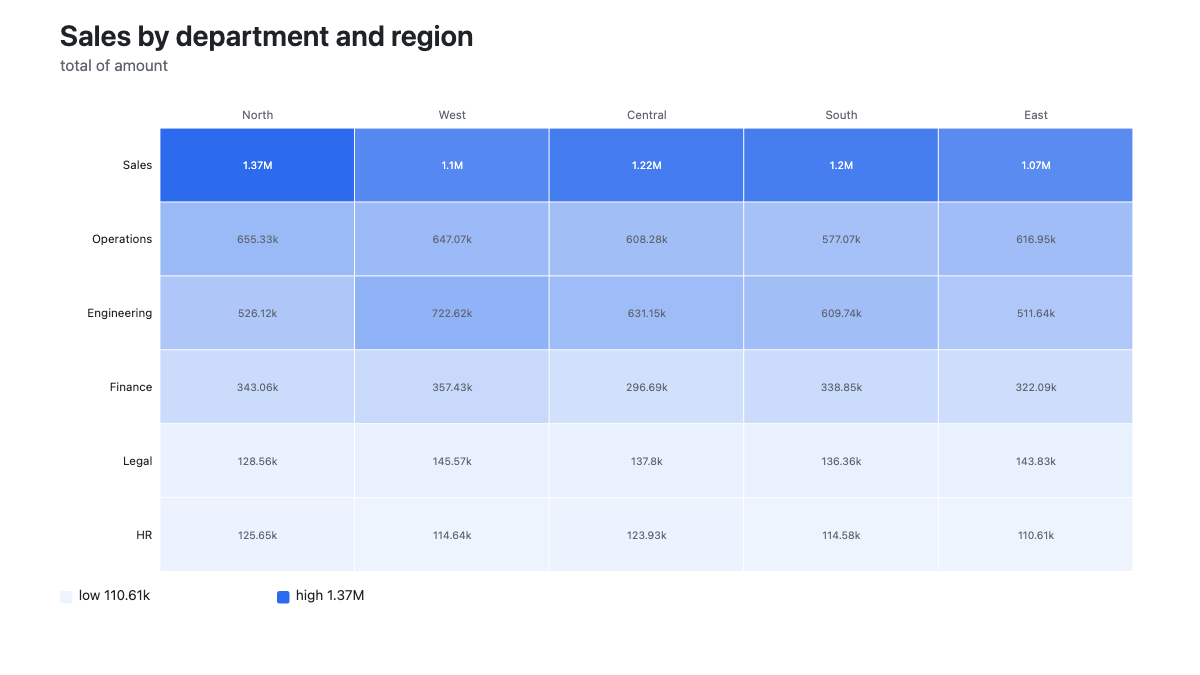
The two columns become a grid, and the number becomes colour. Nothing beats it for finding the hot spot in a large table at a glance.
A heatmap also copes with negative numbers, which the stacking and area charts cannot, since a negative length or a negative area has no meaning.
Treemap
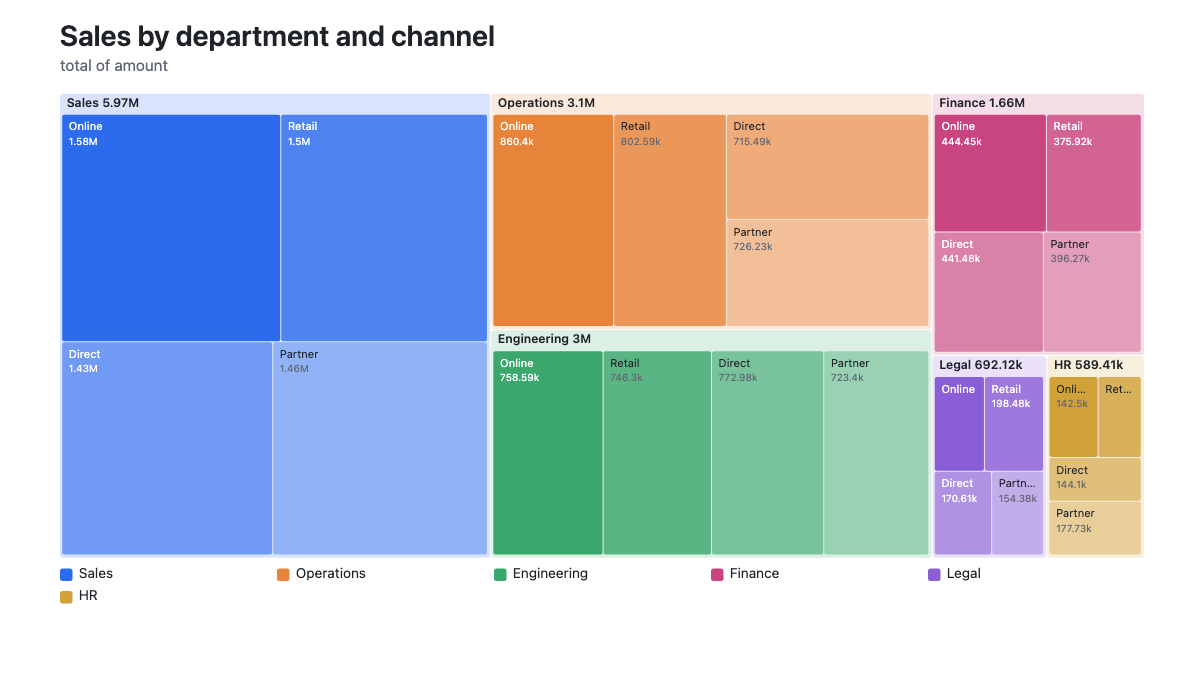
Rectangles sized by value, nested by category. A treemap is the honest answer to a pie chart with too many slices: it stays readable well past the point where a circle gives up, and area is easier to compare than angle.
Use it when you have a lot of categories and want both the big picture and the detail in one image.
Sunburst
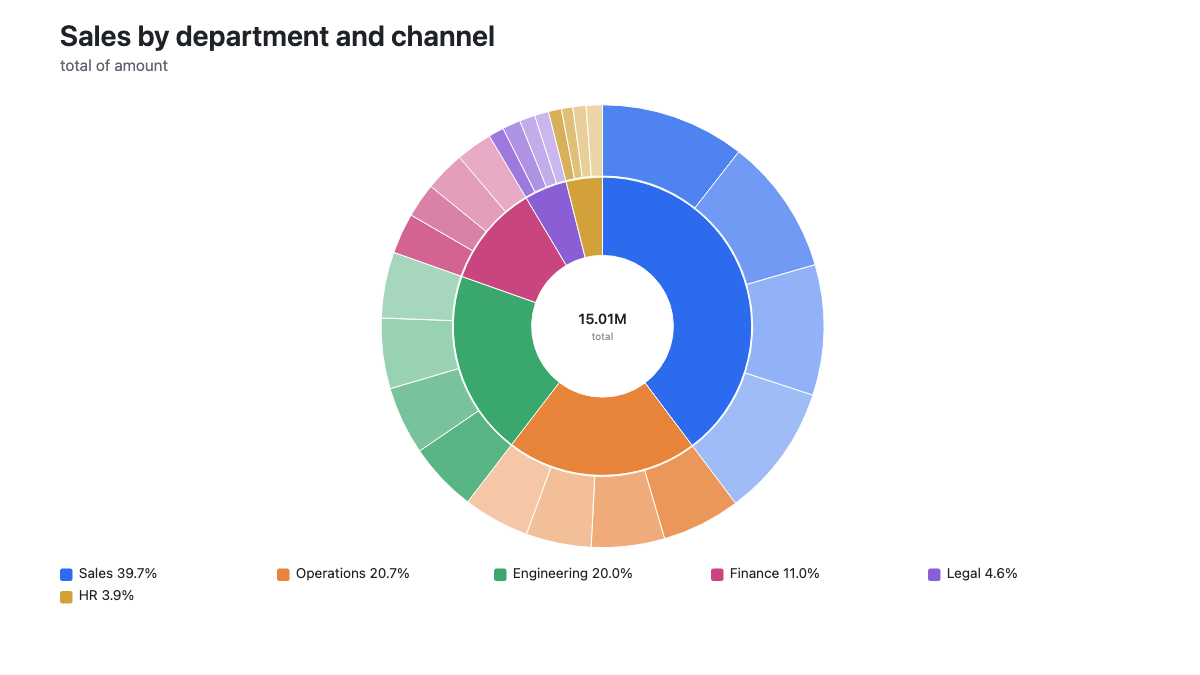
The same hierarchy drawn as rings. The inner ring is the first column, the outer ring breaks each segment down by the second.
A sunburst is better looking than a treemap and slightly harder to read, because angle is less precise than area. Pick it when the nesting is the story.
Sankey diagram
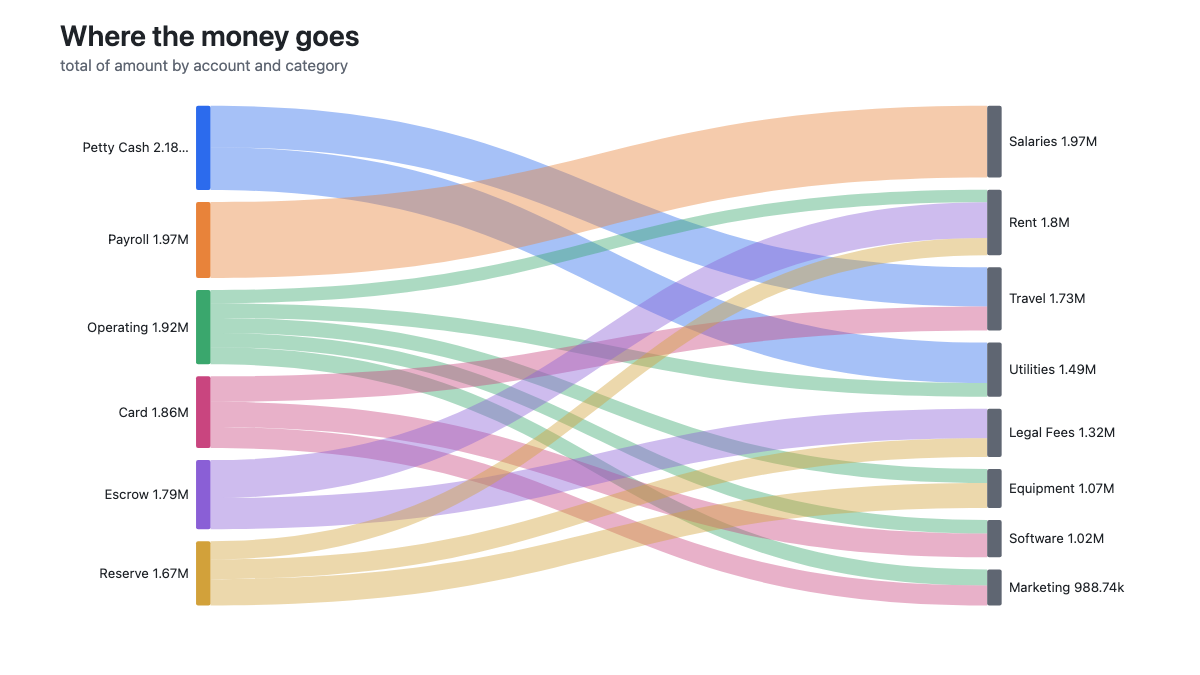
Flows. The left side is where things come from, the right is where they go, and the thickness of each ribbon is the amount.
This is the one people remember. It suits money moving between accounts and categories, cases moving between stages, or stock moving between locations. It needs both sides to be reasonably few, or the ribbons turn to spaghetti.
What the chart should tell you when it cannot be honest
A chart that quietly leaves something out is worse than no chart. Three things BigXL says out loud on the image itself:
- When the scale does not start at zero. Tight values get a zoomed scale so the differences show, and the chart says so, because a zoomed bar chart exaggerates small gaps.
- When groups were left out. Every chart caps how many groups it draws, and the caps differ, because a sankey turns to spaghetti long before a heatmap does. The note under the chart says how many were not drawn.
- When values had to be dropped. Negative numbers cannot be drawn as an area or a flow, so a treemap, sunburst or sankey leaves them out and tells you. Stacked charts refuse to stack at all and fall back to side by side.
- When a line would invent a trend. A chart answers with the busiest groups when a column has more of them than one answer can carry. For a date column that would mean joining up the biggest days and calling it a timeline, so past that point the line and area charts are simply not offered for it.
These notes travel with the exported image, so the person reading your slide sees the same caveat you did.
You do not have to choose at all
Everything above assumes you know which chart you want. Often you do not, and picking from a list of twenty one names is its own chore.
So opening Chart does not start with a blank panel. It reads the columns in your file and shows six charts already made from the real numbers, each with a line saying why it was picked: the biggest category ranked, the share of the whole, how a number column is spread, and a couple of two column comparisons. Click one and it becomes the live chart, with the column, the measure and the split already set.
The suggestions are ranked from the actual shape of your columns, and they never offer something that cannot work. A column with a different value in almost every row, like an order id, is not suggested and cannot be picked as a split, because eight hundred colours in a legend is not a chart.
Making these from a CSV
Charts are only useful if they cover the whole file. A sample of the first million rows is a different answer to the real one.
BigXL reads the entire file, including the ones Excel will not open and the ones past the row limit. The aggregation runs on your own machine, so nothing is uploaded anywhere.
To build one by hand instead:
- Open the file, click Chart, then All charts.
- Pick the column you want along the side, and what to measure: how many rows, or the total or average of another column.
- Pick a chart from the gallery on the left. Every one of the twenty one is there as a small picture of itself, and the suggested one is starred.
- For a two column chart, set split by, or just click the chart and it chooses the second column for you.
- Click Export.
Charts export at 1920 by 1080, which is exactly a widescreen slide, with the title, the legend and any caveat drawn into the image. Every picture in this article is a straight export, not a mock-up.
What is not here yet
Two things are missing, and it is better to say so than to imply otherwise. Scatter, bubble and hexbin density charts plot one row per point rather than a total, so they need a different path through the engine. Small multiples, one small pane per category, are planned too.
The twenty one above are what ships today.
Related reading
- How to compare two CSV files and see exactly what changed
- Why Excel crashes on a large CSV
- A free CSV viewer that opens files Excel cannot
- Ask questions about a CSV with local AI
Common questions
Which chart should I use for my data?
Start from the question. One category column and one number means a bar, column, pie or donut chart. A date column and a number means a line or area chart. One number column on its own means a histogram or a box plot. Two category columns and one number means stacked bars, grouped bars, a heatmap, a treemap, a sunburst or a sankey.
Which chart shows how data changes over time?
A line chart. Time goes along the bottom and the value goes up the side, so the shape of the line is the trend. Use an area chart instead when the total volume matters as much as the direction.
What graph is best for comparing data?
A bar chart is the most accurate way to compare categories, because people judge length far better than angle or area. Use grouped bars when you are comparing two things at once, such as each department across each sales channel.
When should I not use a pie chart?
When you have more than about eight slices, or when the values are close together. Angles are hard to compare, so small differences disappear. A bar chart or a treemap says the same thing more clearly.
What is the difference between a bar chart and a histogram?
A bar chart compares separate categories, such as departments. A histogram shows how one number column is spread, by counting how many rows fall into each band of values. The bars touch because the bands are continuous.
Can I chart a CSV that is too big for Excel?
Yes. BigXL reads the whole file rather than a sample, so a chart over fifty million rows is the real total, not an estimate. The aggregation runs on your own machine and nothing is uploaded.