How to Analyze Massive Datasets Without Splitting Large CSV Files
Splitting a large CSV into parts is usually the wrong fix. It creates files you then have to keep in sync, and every part needs its own copy of the header. If the only reason to split is that the file will not open, the better answer is a tool without a row limit, which removes the need to split at all.
Splitting is the usual advice when a CSV will not open: cut it into pieces small enough for Excel past its 1,048,576 row limit, work on each piece, add up the results. It works. It also quietly creates the problem it was meant to solve.
Here is how to do it properly on each platform, and how to tell whether you should.
macOS and Linux
The split command is already installed.
split -l 1000000 bigfile.csv part_That produces part_aa, part_ab and so on, a million rows each. Only the first part has the header row. To put the header on every part:
head -1 bigfile.csv > header.csv
tail -n +2 bigfile.csv | split -l 1000000 - part_
for f in part_*; do cat header.csv "$f" > "$f.csv" && rm "$f"; done
Splitting by size instead of rows, 200 MB per part:
split -b 200m bigfile.csv part_Avoid that one for CSV. It cuts mid-row and mid-quoted-field, so you get broken records at every boundary.
Windows PowerShell
No built-in split, but this does it, header included on every part:
$src = "bigfile.csv"
$rows = 1000000
$header = Get-Content $src -First 1
$i = 0; $part = 1
$out = New-Object System.IO.StreamWriter("part_1.csv")
$out.WriteLine($header)
Get-Content $src -ReadCount 10000 | ForEach-Object {
  foreach ($line in $_) {
    if ($i -gt 0) {
      if ($i % $rows -eq 0) {
        $out.Close(); $part++
        $out = New-Object System.IO.StreamWriter("part_$part.csv")
        $out.WriteLine($header)
      }
      $out.WriteLine($line)
    }
    $i++
  }
}
$out.Close()
Get-Content -ReadCount matters. Without it PowerShell reads line by line and a multi-gigabyte file takes hours.
The three ways splitting goes wrong
Quoted fields containing newlines. A CSV field wrapped in quotes may legally contain a line break. Address fields and free-text comments do this constantly. Every line-based splitter above, including split, will cut such a record in half and produce two corrupt rows. If your file has free-text columns, check the row counts add up:
wc -l bigfile.csv
wc -l part_*.csv
The parts should exceed the original by exactly the number of added headers.
Every question becomes N questions. This is the real cost. A total across nine parts is nine totals added by hand. A pivot is nine pivots reconciled manually. A deduplication across the whole dataset is not possible at all, because duplicates on either side of a split boundary are invisible to both parts. Learn how to deduplicate a large CSV file without running out of memory instead. So is any sort, since sorting each part does not sort the whole.
The parts drift. Someone fixes a value in part_04.csv. Three weeks later nobody knows which parts were edited and the original is stale.
When splitting is right
- You need to hand one slice to someone else, one region or one month.
- An upstream system takes a maximum file size.
- You genuinely only need the first N rows, to inspect the structure.
When it is not
If you are splitting to avoid Excel crashing on large CSV files or because VLOOKUP freezes Excel on big sheets, splitting creates new headaches. If you are splitting so that you can total, sort, filter, pivot or deduplicate the whole dataset, you are about to do the work N times and reconcile it by hand. The file does not need splitting. It needs opening.
Two options that do not involve cutting anything up:
DuckDB, if you write SQL. It reads the CSV in place, no import:
duckdb -c "SELECT region, sum(amount) FROM 'bigfile.csv' GROUP BY region"A spreadsheet with no row limit, if you do not. Some desktop tools index the file and read only the rows on screen, so the whole thing stays one file and one total.
What we built
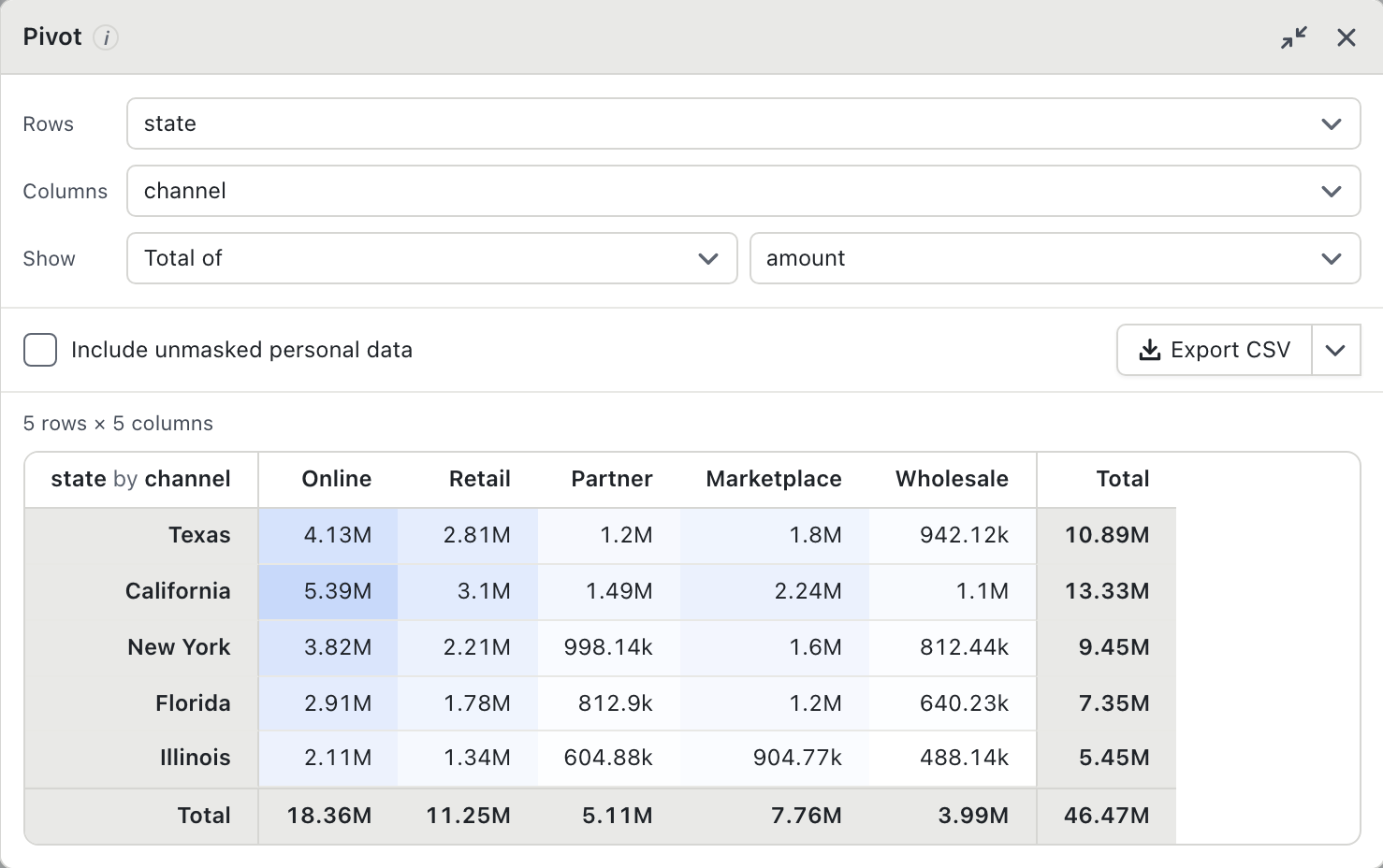
BigXL opens the whole CSV, at any size, without splitting or importing it. Sorting, filtering, deduplication and pivots run over every row, so a total is a total, not nine totals.
The file is processed entirely on your own machine, with no account or upload.
Opening, sorting, filtering, charting and CSV export are free at any file size.
Common questions
How do I split a CSV and keep the header on every part?
Any split has to write the header row into each output file, otherwise the later parts lose their column names. BigXL handles this for you, and splitting is a Pro feature.
When is splitting actually the right answer?
When something downstream genuinely requires smaller files, such as an upload limit or an import tool that caps file size. If you are only splitting so that Excel will open it, you are working around the row limit rather than solving it.
Can I work with a 10 GB CSV without splitting it?
Yes. BigXL opens the whole file for free with no row limit, so sorting, filtering, summarising and pivoting all work across the complete dataset instead of one part at a time.