How to Fix 'Excel Out of Memory' Errors on Large CSV Files
Excel shows Out of Memory or Not Enough Available Resources when the sheet it is trying to build will not fit in RAM. Even 64-bit Excel needs several times the file size in memory, so a 2 GB CSV can ask for 10 GB or more. Closing other programs rarely helps enough, because the requirement grows with the file.
You have 32 GB or 64 GB of RAM on your workstation, but double-clicking a 4 GB CSV causes Excel to lock up, consume all system memory, and throw an error stating “Excel cannot complete this task with available resources” or “Out of Memory”.
Here is why Excel consumes ten times more memory than the file size on disk, why 64-bit architecture does not solve the problem, and how to fix or bypass memory crashes when processing large datasets.
Why Excel runs out of memory on CSV files
A plain text CSV file stored on your hard drive uses minimalist formatting. A line like 1001,John Doe,2026-09-23,450.00 takes about 35 bytes of storage.
When Excel opens that CSV, it converts every text value into an in-memory object model. This process creates massive overhead:
- Cell metadata overhead. Every single cell in an Excel grid carries formatting properties, formula pointers, data type flags, and calculation dependency graphs. A 1 GB plain text file routinely expands to 8 GB or 12 GB of RAM in memory.
- Undo stack buffer. As you edit, filter, or sort columns, Excel maintains undo history buffers in active RAM. Performing a sort on 10 million cells requires storing both the pre-sort and post-sort states simultaneously.
- Single-threaded recalculation lock. When Excel nears its memory threshold, Windows begins swapping RAM pages to disk pagefiles. This causes CPU usage to spike while the interface freezes into “Not Responding” status.
Why 64-bit Excel still crashes
Switching from 32-bit Excel (which was limited to 2 GB of RAM per process) to 64-bit Excel allows the app to address more system memory. However, 64-bit Excel does not change how memory is allocated per cell.
In fact, 64-bit memory pointers take up more space in RAM than 32-bit pointers. Opening a 15 GB CSV file on a 64-bit system with 32 GB of RAM can easily exceed available physical memory, forcing Windows to thrash the hard drive.
Decoding Excel memory error messages
| Error Message | Cause |
|---|---|
| “Excel cannot complete this task with available resources” | Active RAM and pagefile limits reached during calculation. |
| “Out of Memory” | Memory allocation failed while creating cell object grids. |
| “System Resource Exceeded” | Internal memory limit reached inside Power Query or formula engines. |
| “Not enough storage is available to process this command” | Clipboard or undo stack buffer full during copy/paste actions. |
How to fix or bypass Excel memory errors
1. Turn off Automatic Calculation
If your file opens but crashes whenever you edit a cell, switch calculation mode to Manual:
- Go to Formulas > Calculation Options.
- Select Manual.
This stops Excel from recalculating formulas across millions of rows every time a single value changes.
2. Clear clipboard and undo history
If you receive memory errors while copying or pasting large blocks of data:
- Press
Escto clear active selection borders. - Save the workbook and restart Excel to purge the undo stack from system memory.
3. Stream the file from disk instead of loading to RAM
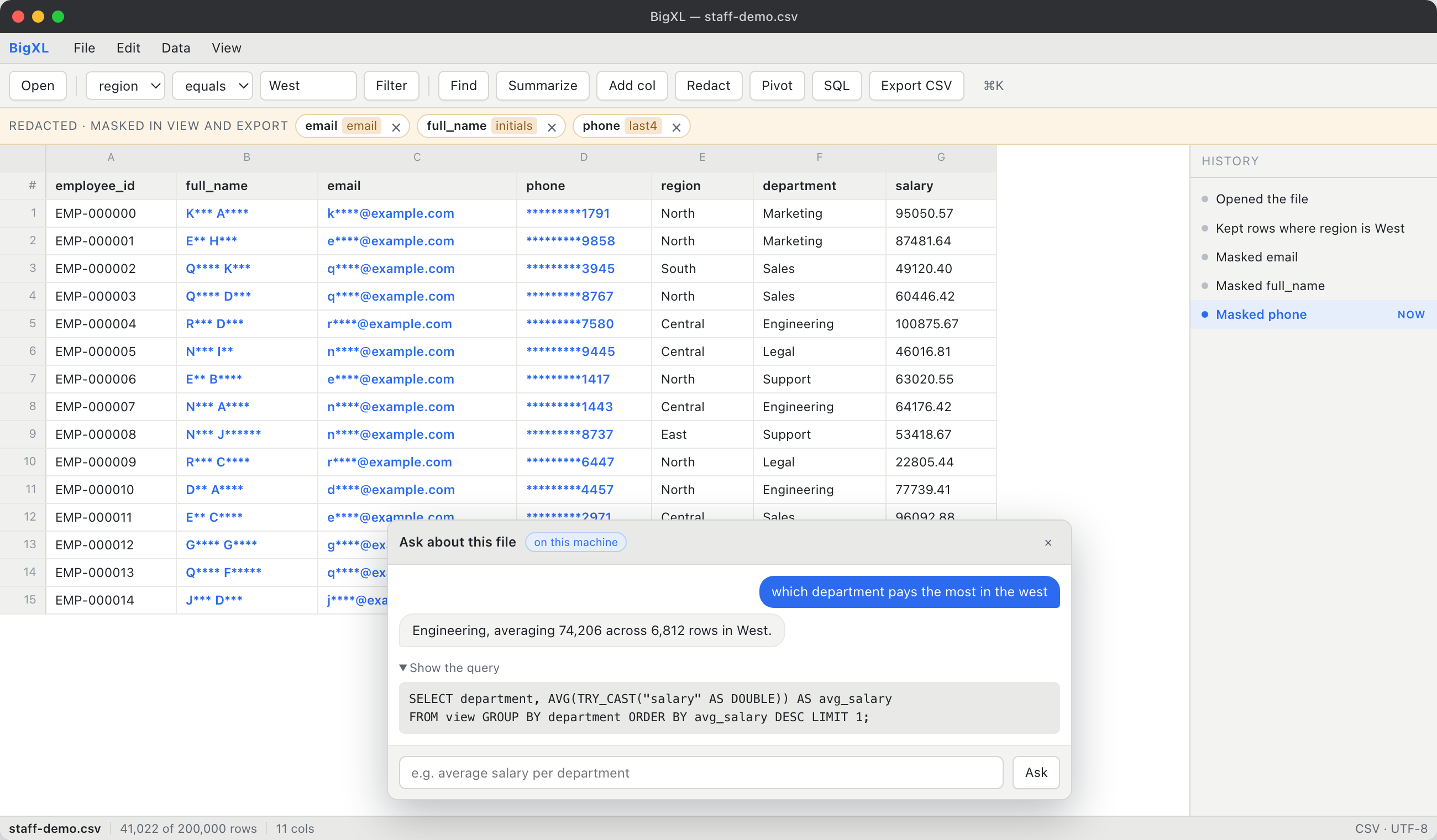 The fundamental cause of Excel memory crashes is that Excel insists on loading the entire dataset into RAM at once.
BigXL takes a streaming disk-first approach built on Rust and DuckDB. Instead of expanding a 10 GB CSV into 40 GB of RAM objects, BigXL indexes the file on disk and reads only the visible window into memory.
- Minimal RAM footprint. BigXL maintains a working memory footprint of around 120 MB regardless of whether your file is 2 GB or 50 GB.
- No memory crashes. Because data is streamed on demand, you never encounter “Out of Memory” or “Available Resources” errors.
- Instant filtering and sorting. Run queries across tens of millions of rows in seconds without locking up your workstation.
- 100% Local and Private. Your data stays entirely on your local machine with zero cloud uploads.
Stop fighting Excel memory limits. Open your large CSV files smoothly with BigXL.
Common questions
Why does 64-bit Excel still run out of memory?
64-bit removes the 2 GB address ceiling, but not the underlying cost. Every cell carries formatting and type information, so the in-memory sheet is usually four to eight times the size of the CSV on disk.
Will adding more RAM fix it?
Sometimes, and only up to a point. It moves the ceiling rather than removing it, and it does nothing about the 1,048,576 row limit, which you will hit next on a genuinely large file.
How do I open the file without the error?
Use a tool that streams the file from disk instead of loading it whole. BigXL opens any size for free and holds only the part of the file you are looking at in memory.